

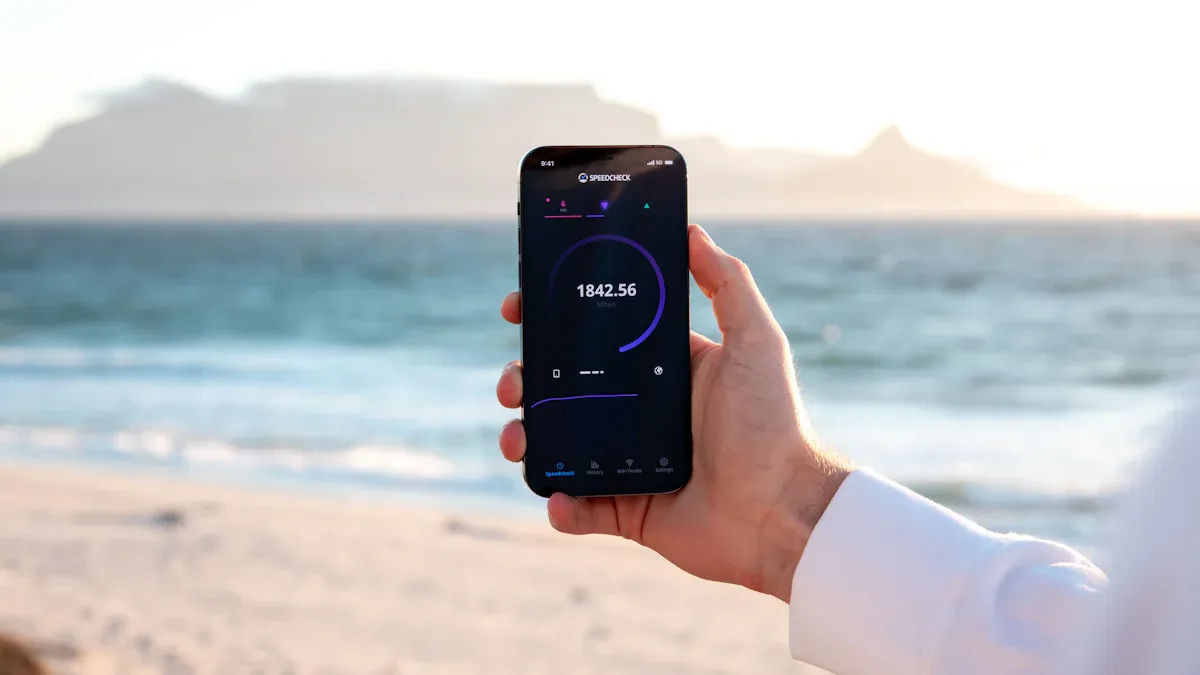
Many Android users face frustrating performance issues, particularly when it comes to Android Speed Optimization. Have you ever waited too long for an app to load? You’re not alone! About 39% of users on entry-level Android devices report waiting over 5 seconds for apps to load. This lag can lead to negative experiences, causing users to abandon apps or lower their ratings.
Optimizing your device’s speed through Android Speed Optimization is crucial for a smooth experience. Studies show that better app performance enhances user satisfaction, retention, and trust. In this blog, we’ll explore six effective methods to boost your Android performance.
Key Takeaways
Regularly clear your cache to free up storage and improve device speed. Aim to do this at least once a month.
Uninstall unused apps to enhance performance. Identify apps you rarely use and remove them to free up resources.
Keep at least 10% to 15% of your storage free. This helps prevent slowdowns and app crashes, ensuring smooth operation.
Optimize your home screen by limiting widgets and organizing apps. A clean layout can lead to faster app launches and better battery life.
Always update your Android system. Regular updates provide security patches and performance improvements that enhance your device’s functionality.
Clear Cache
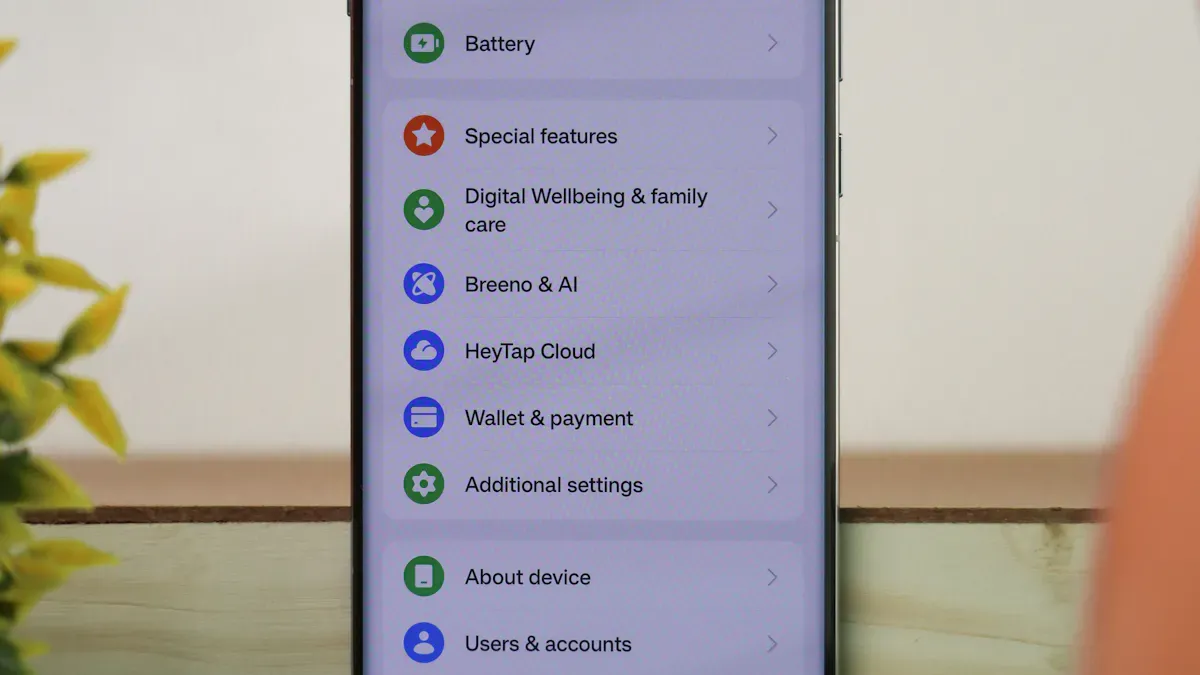
Clearing cache is an essential part of maintaining your Android device’s performance. Over time, apps accumulate temporary files, known as cached data, which can slow down your device. Regularly clearing this cache helps keep your device running smoothly. Experts recommend doing this at least once a month to ensure optimal performance.
Steps to Clear Cache
Clearing cached data is simple. Here’s how you can do it for individual apps:
Open the Settings app on your device.
Tap on Storage.
Select Apps or App Manager.
Choose the app you want to clear the cache for.
Tap on Storage.
Finally, select Clear Cache.
By following these steps, you can easily remove unnecessary files that may be bogging down your device.
Benefits of Clearing Cache
Clearing cache offers several benefits:
It can free up between 1.2 to 3.8 GB of storage space, depending on your device and the amount of cached data.
It helps remove outdated or corrupted files that may cause glitches or slowdowns.
Regular cache clearing can enhance your device’s responsiveness and speed.
Many users have reported positive experiences after clearing their cache. One user mentioned that doing this monthly keeps their devices working great by removing junk files. Another user noted that while it may not be a miracle solution, it can resolve specific issues and improve speed.
In short, clearing cached data is a straightforward method to boost your Android speed optimization efforts. By making it a regular habit, you can enjoy a smoother and faster experience on your device.
Uninstall Apps
Unused apps can really drag down your Android device’s performance. When you have too many apps installed, they consume processing power and can even drain your battery. In fact, studies show that the average smartphone user has over 80 apps installed but only uses about 9 daily. This means more than half of your apps might just be sitting there, taking up space and resources.
Identify Unused Apps
To start optimizing your device, take a look at the apps you rarely use. Here are some tips to help you identify those unused apps:
Check your app usage statistics in the Settings app.
Look for apps that you haven’t opened in the last month.
Consider whether you really need an app if you only use it once in a blue moon.
Remember, keeping unused apps can lead to inefficient app power consumption. Reports indicate that 20.5% of users experienced significant battery drain, which improved after uninstalling problematic apps.
How to Uninstall Apps
Once you’ve identified the apps you want to delete, uninstalling them is a breeze. Follow these steps:
Open the Settings app on your device.
Tap on Apps or App Manager.
Scroll through the list and select the app you want to uninstall.
Tap on Uninstall and confirm your choice.
By removing these unused apps, you’ll notice a boost in your device’s speed and overall performance. One user even reported that their phone felt noticeably faster after getting rid of apps they never used.
Free Up Storage
Keeping your Android device’s storage free is crucial for optimal performance. When your storage is full, your device struggles to operate efficiently. In fact, it’s recommended to keep 10% to 15% of your storage free. This space allows your device to run smoothly and helps prevent issues like app crashes and sluggish performance.
Importance of Free Space
Here’s why maintaining free storage is essential:
Insufficient storage can lead to slower response times.
It may cause app crashes because the system can’t write new data.
Overall device performance becomes sluggish as the operating system struggles to function properly.
By ensuring you have enough free space, you can avoid these frustrating issues and enjoy a more responsive device.
Tips to Free Up Storage
Ready to reclaim some space? Here are some effective methods to help you free up storage on your Android device:
Open Settings on your Android device.
Click on Apps or Apps and Notifications.
Filter and sort to find apps you rarely use.
Review and uninstall apps you no longer need.
Additionally, consider these tips:
Use an SD Card: Move large files, like photos and videos, to an SD card to free up internal storage.
Delete Unused Apps: Regularly uninstall apps that you don’t use anymore.
Clear Browsing Data: Delete cached files and browsing history to free up space.
Review Messaging Apps: Adjust settings in messaging apps to limit media storage.
Clear Downloads and Attachments: Periodically delete files in your downloads folder.
Back Up to the Cloud: Use cloud services to back up files instead of storing them locally.
Perform Regular Storage Checks: Review your storage every few weeks to manage space effectively.
By following these tips, you can effectively manage your storage and enhance your Android speed optimization efforts. Keeping your device clutter-free not only improves performance but also makes it easier to find the apps and files you need.
Optimize Home Screen

Your home screen is the first thing you see when you unlock your Android device. It’s not just a pretty face; how you set it up can significantly impact your device’s speed and performance. By customizing your home screen, you can create a more efficient and responsive experience.
Customizing Home Screen
Start by simplifying your home screen layout. Here are some tips to help you optimize it:
Limit Widgets: While widgets can be handy, they often consume resources. Live wallpapers and multiple widgets can slow down your device. For instance, live wallpapers can increase battery drain by 7.3% per hour and cause a 12–17% higher jank rate during transitions. Consider using static wallpapers instead.
Organize Apps: Group similar apps into folders. This not only declutters your screen but also makes it easier to find what you need quickly.
Remove Unused Shortcuts: If you have shortcuts for apps you rarely use, remove them. This can help reduce background activity and improve performance.
Disable Unnecessary Features: Turn off features like Bluetooth scanning or nearby device discovery when you don’t need them. This reduces background activity and can enhance your device’s speed.
Benefits of Optimization
Optimizing your home screen offers several advantages:
Improved Responsiveness: A clean and organized home screen can lead to faster app launches and smoother transitions. You’ll notice less lag when switching between apps.
Enhanced Battery Life: By limiting resource-heavy elements like live wallpapers and unnecessary widgets, you can extend your battery life. This means you can use your device longer without needing to recharge.
Better Focus: A clutter-free home screen helps you focus on the apps you use most. You’ll spend less time searching for what you need, making your overall experience more enjoyable.
Update Android
Keeping your Android OS updated is crucial for maintaining your device’s performance and security. Updates often include important improvements that can enhance your overall experience. When you update your device, you gain access to new features, bug fixes, and security patches that protect your sensitive information.
Importance of Updates
Here’s why you should prioritize updating your Android device:
Security Enhancements: Updates include critical security patches that protect against vulnerabilities, ensuring safer usage of sensitive applications like banking.
App Stability: Improvements in memory handling reduce app crashes, leading to a smoother multitasking experience.
Battery Optimization: Updates improve idle power usage, helping to mitigate overnight battery drain.
Connectivity Fixes: Enhancements to Wi-Fi and Bluetooth connectivity ensure more reliable connections.
Bug Fixes: Minor issues affecting daily use are addressed, leading to a smoother overall experience.
By keeping your device updated, you can enjoy these benefits and ensure your Android speed optimization efforts are effective.
How to Check for Updates
Checking for updates on your Android device is straightforward. Follow these steps:
Open the Settings app on your device.
Scroll down and tap on System.
Select System Update or Software Update.
Your device will check for available updates. If an update is available, follow the prompts to download and install it.
Make it a habit to check for updates regularly. This simple action can significantly improve your device’s performance and security. Remember, timely updates help defend against known vulnerabilities, so don’t delay!
Use Lite Apps
If you’re looking to boost your Android device’s performance, consider using lite apps. These smaller versions of popular applications are designed to consume fewer resources, making them perfect for devices with limited storage or older hardware.
Benefits of Lite Apps
Using lite apps can significantly enhance your experience. Here are some key benefits:
Reduced Storage Usage: Lite apps take up less space on your device. For example, Google Go only requires 12 MB compared to the full Google app’s 166 MB.
Faster Loading Times: Lite apps often load quicker than their full counterparts. This means you can access your favorite features without the wait.
Lower Data Consumption: These apps are optimized to use less data, which is great if you’re on a limited plan. You can save money while enjoying the same functionalities.
Improved Performance on Older Devices: Lite apps run smoothly on devices with less RAM. They are designed for optimal performance, even on older Android models.
Finding Lite Apps
Finding lite apps is easier than you might think. Here are some popular options you can try:
Lite App | Full Version | Key Features and Differences |
|---|---|---|
Google Go | Consumes 12 MB vs 166 MB; lacks Google Feed; includes basic functions like GIF and Translate. | |
Gmail Go | Gmail | Occupies 77 MB vs 260 MB; integrates secure messaging; maintains similar interface. |
YouTube Go | YouTube | Focuses on data saving; allows video download; size is 29 MB vs 122 MB. |
Google Maps Go | Google Maps | Lighter UI; requires Chrome; lacks 3D view and offline maps; needs additional app for navigation. |
Google Assistant Go | Google Assistant | A simplified version of the assistant for lower resource usage. |
While lite apps can save storage, be cautious. For instance, switching to Facebook Lite may not reduce storage as expected. Although it has a smaller APK size, it can lead to more cached images, resulting in an overall negative storage impact after a month.
By choosing lite apps, you can enjoy a smoother experience on your Android device without sacrificing functionality. So why not give them a try?
In summary, you can significantly enhance your Android device’s performance by following these six methods: clearing cache, uninstalling unused apps, freeing up storage, optimizing your home screen, updating your Android system, and using lite apps.
Many users have reported improvements in speed and battery life after implementing these strategies. For instance, optimizing background processes can lower CPU usage, leading to better battery performance.
Give these methods a try! Share your experiences or any additional tips in the comments below. Your insights could help others enjoy a smoother Android experience!
