

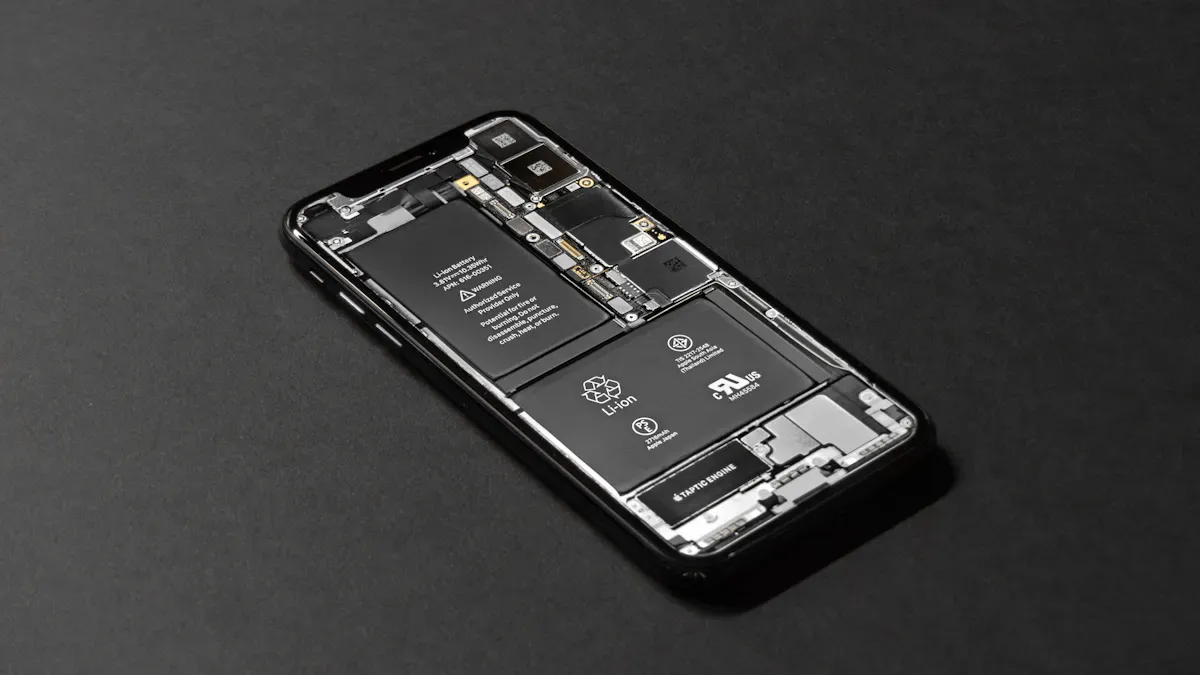
Imagine this: you’re out and about, relying on your smartphone for directions or to stay connected. Suddenly, your battery icon flashes red, and before you know it, your phone shuts down. You’re not alone; 31 percent of smartphone users face this issue daily. Battery life optimization is crucial for anyone who depends on their device throughout the day. By following a few simple tips for battery life optimization, you can significantly enhance your battery life and avoid those frustrating moments of being cut off from the digital world.
Key Takeaways
Adjust your screen brightness to save battery. Lowering it from 100% to 50% can extend video playback by 36%.
Manage location services wisely. Disable them when not needed, but keep them on for navigation apps to avoid unnecessary battery drain.
Turn off Wi-Fi, Bluetooth, and mobile data when not in use. This simple action can significantly reduce battery consumption.
Regularly check which apps drain your battery. Uninstall or limit background activity for power-hungry apps to improve battery life.
Maintain your battery charge between 30% and 80%. This practice helps prolong battery lifespan and prevents damage from overnight charging.
Settings for Battery Life
Brightness and Timeout
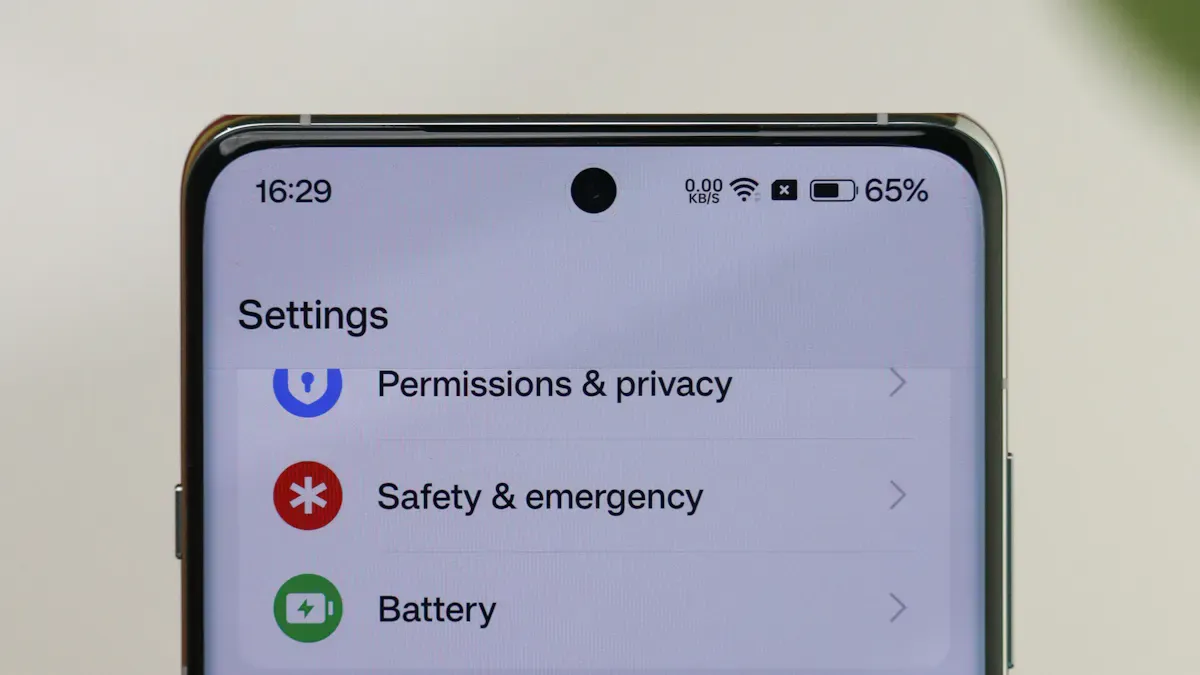
Adjusting your screen brightness can have a significant impact on your battery life. In fact, screen brightness accounts for 25–40% of your smartphone’s total power consumption. By dimming your screen, you can extend your battery life considerably. For example, reducing brightness from 100% to 50% on a Pixel 7 Pro increases video playback time from 12 hours and 18 minutes to 16 hours and 42 minutes—a remarkable 36% improvement. During web browsing, this adjustment adds an extra 2 hours and 14 minutes of usage. However, keep in mind that lowering brightness below 30% yields diminishing returns, with only 4–7% more runtime for each additional 10% reduction. Conversely, increasing brightness above 70% can consume 12–18% more power for every 10% increase.
To further optimize battery life, set your screen timeout to 15 seconds. This setting minimizes the time your screen remains active when not in use, helping to conserve energy.
Location Services
Location services can drain your battery quickly due to constant GPS usage. Disabling these services can lead to improved battery performance. Many users believe that turning off location services will greatly increase battery life, which often leads them to disable features that rely on GPS. However, GPS drains battery only when actively used for navigation, such as in apps like Google Maps.
Here are some key points regarding location services and battery drain:
Location services can significantly drain battery life.
Disabling them can improve battery performance.
The impact varies based on usage patterns and app settings.
Some apps that frequently use location services include:
App Name | Battery Drain (%) |
|---|---|
Google Maps | High (during navigation) |
Life360 | Moderate (continuous tracking) |
Find My | Moderate (GPS and data usage) |
Snapchat | Low (location checks) |
Tinder | Low (location tracking) |
Uber/Lyft | Moderate (location for rides) |
Connectivity Options
Managing your connectivity settings can also enhance your battery life. Disabling Wi-Fi, Bluetooth, and mobile data when not in use can lead to notable improvements. These features consume power even when idle, so turning them off can minimize background activities that drain energy.
For instance, enabling airplane mode reduces battery usage by disabling wireless circuitry. In tests, devices in airplane mode dropped only a few percent in battery level over four hours, compared to nearly 10% with airplane mode off.
Additionally, completely shutting down your device is more effective than using airplane mode. When powered off, your smartphone cools down, stopping the decomposition of electrolytes and allowing for some lithium plating to dissolve, which is crucial for battery longevity.
By adjusting these settings, you can significantly enhance your battery life and enjoy your smartphone throughout the day without the constant worry of running out of power.
App Management for Battery Optimization
Identifying Battery Drainers
Managing your apps is crucial for optimizing battery life. Some apps consume more power than others, often without you realizing it. Common power-hungry apps include:
Facebook Messenger
Instagram
YouTube
ChatGPT and other AI apps
Tinder
Amazon apps
Uber
Call of Duty: Mobile and other games
To identify which apps drain your battery, check your smartphone’s settings. Most devices offer tools to help you monitor battery usage. For example:
Samsung: Access battery settings to view app usage percentages since the last full charge.
Google Pixel: Check battery usage by app in the settings menu, including background time.
OnePlus: View battery usage details over 24 hours and optimize battery usage.
By regularly checking these settings, you can pinpoint which apps require your attention.
Background App Refresh
Background app refresh allows apps to update content even when you’re not using them. While this feature can be useful, it often drains your battery. You can manage background app refresh settings to improve battery life.
For iOS devices, follow these steps:
Go to Settings.
Tap on Background App Refresh.
Choose to turn it off, set it to update only on Wi-Fi, or manage specific apps.
On Android devices, you can:
Access the Settings app.
Navigate to Apps or Data Usage.
Find individual apps and toggle off Allow background data usage.
Disabling background refresh for non-essential apps can lead to noticeable improvements in battery performance.
Uninstalling Unused Apps
Uninstalling apps you no longer use can significantly enhance your smartphone’s battery life. Here’s how:
Free up storage space, which is beneficial for devices with limited capacity.
Improve battery life by eliminating background processes that consume power.
Enhance overall device performance by reducing the strain on resources.
Regularly review your apps and remove those that you don’t use. This simple action can lead to a more efficient device and longer battery life.
By managing your apps effectively, you can optimize your smartphone’s battery life and enjoy uninterrupted usage throughout the day.
Utilizing Low-Power Mode
Battery Saver Mode
Using low-power mode can significantly enhance your smartphone’s battery life. When you activate battery saver mode, your device makes several adjustments to conserve energy. Here are some key features of battery saver mode:
Background Activity: Reduced to extend battery life.
5G Connectivity: Disabled during low battery conditions.
Auto-Lock: Defaults to 30 seconds.
Display Brightness: Automatically reduced.
Background App Refresh: Turned off for non-essential apps.
These changes help you stretch your battery life when you need it most. By limiting background activities, your phone can focus on essential tasks, allowing you to stay connected longer.
Extreme Battery Saver
Extreme battery saver mode takes power conservation a step further. This mode is especially useful when your battery is critically low. Here’s how it differs from standard battery saver mode:
Feature | Standard Power Saving Mode | Extreme/Ultra Power Saving Mode |
|---|---|---|
App Access | All apps are available but may run slower. | Only essential apps like Phone and Messages are allowed. |
Notifications | Often delayed for non-essential apps. | Paused for most apps to save battery. |
Connectivity | Wi-Fi and mobile data stay on, but background use is limited. | May turn off Wi-Fi, Bluetooth, and location services when the screen is off. |
Visuals | Screen brightness is reduced. | May switch to a simplified or dark theme. |
When you activate extreme battery saver mode, your phone prioritizes essential functions. This mode can extend battery life significantly, especially in low-battery situations. However, some functionalities may be temporarily disabled, and tasks may take longer to complete due to reduced processing power.
Best Practices for Battery Life
Ideal Charge Levels
To maximize your smartphone’s battery lifespan, you should maintain your charge levels between 30% and 80%. Here are some key points to remember:
Charge your phone when it reaches 30% state of charge.
Limiting your smartphone’s maximum charge to 80-90% is better for the battery’s health than charging to full every time.
Frequent charging to 100% increases stress on lithium-ion batteries. This can lead to reduced battery lifespan due to higher voltage levels during full charges.
Avoiding overnight charging is also crucial. Leaving your phone plugged in overnight can cause trickle charging, which wears down the battery over time. Instead, aim for optimized charging habits that keep your battery healthy.
Regular Software Updates
Regular software updates play a vital role in improving battery performance. While you might notice a temporary decline in battery life after a major update, these updates often introduce features that enhance battery management. For example, Apple’s iOS updates include tools like ‘Adaptive Power,’ which optimize battery usage by adjusting settings such as screen brightness and prioritizing tasks.
Keeping your software up to date ensures you benefit from the latest improvements. Regular updates can lead to better battery efficiency over time. Additionally, maintaining your device’s hardware through updates can improve overall performance, further extending battery life.
In summary, optimizing your smartphone’s battery life involves several key strategies. Adjust your settings, manage your apps, and utilize low-power modes effectively. Remember to maintain ideal charge levels and keep your software updated. These practices can help you extend your device’s usage throughout the day.
Implementing techniques like Time of Use (TOU) mode can also save energy costs. You can charge during off-peak hours and discharge during peak hours.
Feel free to share your own tips or experiences in the comments below! 📱✨
FAQ
How can I check which apps drain my battery?
You can check battery usage in your smartphone settings. Look for “Battery” or “Battery Usage” to see which apps consume the most power. This helps you identify and manage battery drainers effectively.
Does charging my phone overnight damage the battery?
Yes, charging overnight can lead to trickle charging, which stresses the battery. Aim to unplug your phone once it reaches 100% to maintain battery health and longevity.
What is low-power mode, and when should I use it?
Low-power mode reduces background activity and limits features to extend battery life. Use it when your battery is low or when you need to conserve power throughout the day.
Can I use my phone while it’s charging?
Yes, you can use your phone while charging. However, heavy usage may generate heat, which can affect battery health over time. Try to limit intensive tasks during charging.
How often should I update my smartphone software?
You should update your smartphone software regularly. Updates often include battery optimization features and security improvements. Check for updates at least once a month to ensure optimal performance.
