

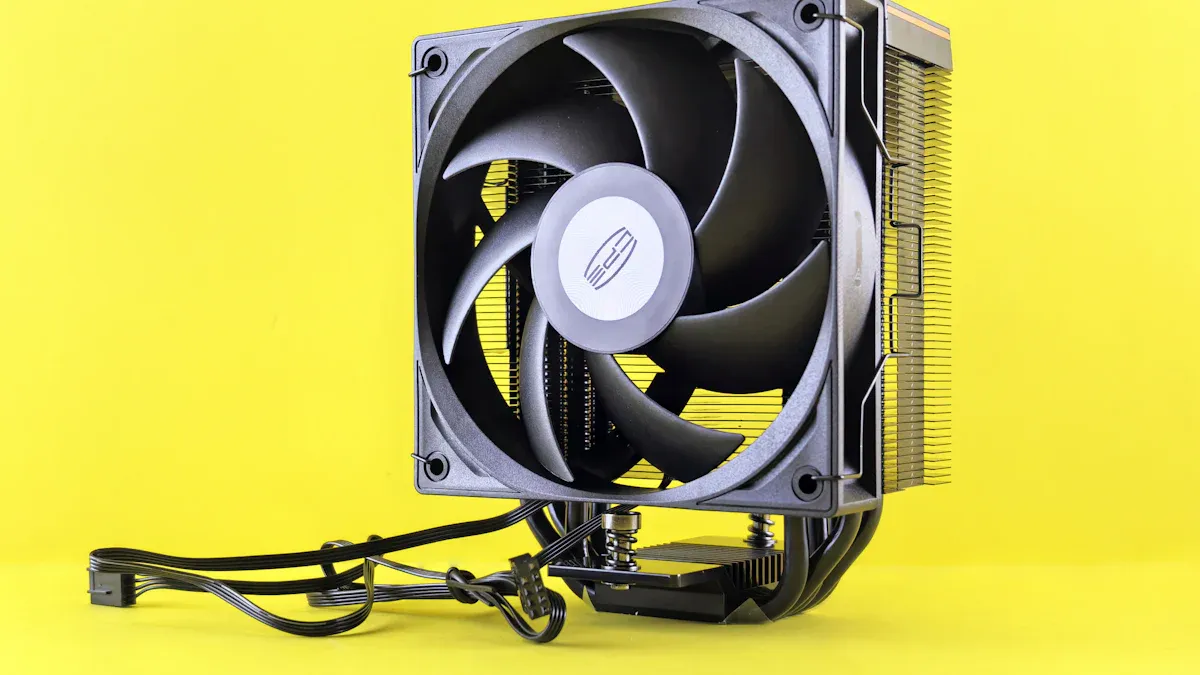
Keeping your laptop cool is crucial. Overheating can lead to serious issues like reduced system performance and even permanent damage. You might notice your laptop feels hot to the touch or hear the fan running loudly. Here are some common signs of overheating:
Sign of Overheating | Description |
|---|---|
Laptop feels hot | A laptop becomes noticeably hot to the touch, especially on the back. |
Thermometer icon | A thermometer icon appears on the screen, indicating overheating. |
Fan noise | The fan runs loudly and continuously as it tries to cool down the device. |
Performance issues | The laptop might lag, freeze, or experience other performance issues. |
Battery drain | The battery drains more quickly than usual. |
Screen flickering | The screen may flicker or display strange artifacts. |
Implementing effective laptop cooling methods can help you prevent overheating and extend your device’s lifespan.
Key Takeaways
Recognize signs of overheating, such as a hot laptop, loud fan noise, and performance issues. Address these signs promptly to prevent damage.
Implement active cooling methods like cooling pads and external fans to significantly lower laptop temperatures during demanding tasks.
Utilize passive cooling techniques, such as applying thermal paste and ensuring good ventilation, to enhance heat dissipation without added noise.
Regular maintenance is crucial. Clean vents every 1-2 weeks and monitor temperatures to keep your laptop running efficiently.
Adjust power settings to reduce heat generation. Use energy-saving modes and limit background processes to maintain optimal performance.
Heat Generation

Causes of Heat
Laptops generate heat for several reasons. Understanding these causes can help you manage heat buildup effectively. Here are some primary sources of heat generation in modern laptops:
Component | Contribution to Heat Generation |
|---|---|
Memory | Produces a high heat load; heat spreaders are used to manage this heat. |
Vapor Chambers | Moves heat away from high-power components using two-phase cooling technology. |
Thermal Insulation | Helps in reducing hot spots and improving overall heat dissipation. |
One major contributor to heat is the processor. When you run demanding tasks, your CPU and GPU can generate over 150 watts of heat. This heat accumulates in small spaces, leading to overheating if not managed properly. If your laptop exceeds safe temperature thresholds, it may throttle performance to cool down, which can be frustrating during intense gaming or video editing sessions.
Effects of Overheating
Overheating can have several short-term and long-term effects on your laptop’s performance and hardware. Here are some immediate impacts you might notice:
Repeated exposure to high temperatures can wear down laptop components, leading to performance degradation.
Overheating can cause system crashes and reduced performance, affecting usability during tasks.
Continuous overheating can shorten the lifespan of the laptop, indicating long-term performance issues.
Thermal throttling occurs, causing the laptop to slow down when maximum performance is needed.
Laptops can become excessively hot, especially under heavy use, which directly impacts processing speeds.
In the long run, consistent exposure to elevated temperatures can accelerate wear and tear on internal parts. Components like the CPU, GPU, and power supply unit are particularly susceptible to heat damage. Even solid-state drives (SSDs) can experience reduced lifespan when operating at high temperatures.
By understanding these causes and effects, you can take proactive steps to keep your laptop cool and functioning optimally.
Active Laptop Cooling Methods
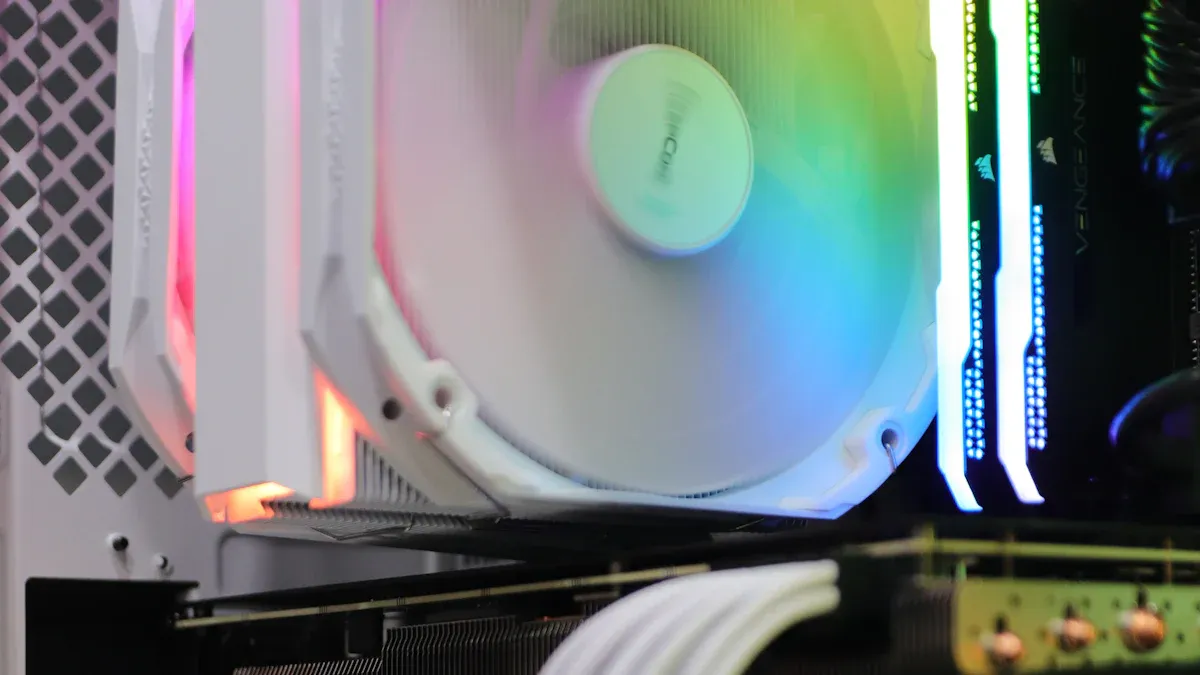
When it comes to keeping your laptop cool, active cooling methods can make a significant difference. These methods actively reduce heat and help maintain optimal performance. Let’s explore some popular options.
Cooling Pads
Cooling pads are a fantastic way to enhance your laptop’s cooling system. They sit underneath your laptop and use fans to increase airflow. This extra airflow helps dissipate heat more effectively than just using a desk or table.
Temperature Reduction: Using a cooling pad can lower CPU and GPU temperatures by 15–25°C compared to using a desk alone. For instance, one test showed that idle CPU temperatures dropped from 75°C to around 52°C with a cooling pad. During peak gaming, temperatures that reached 95–97°C stabilized closer to 70–75°C with a cooling pad.
Cooling pads come in various designs and sizes, so you can find one that fits your laptop perfectly. They often include adjustable fan speeds, allowing you to customize cooling based on your needs. While they are effective, remember that they may not be as efficient as some other active cooling methods for long-term temperature stability.
External Fans
External fans are another great option for your laptop cooler setup. These fans blow cool air directly into your laptop, helping to prevent overheating during heavy workloads.
Performance Boost: Using an external laptop cooler can enhance performance by blowing cool air into the laptop. This helps keep temperatures down, especially when you’re gaming or running demanding applications. Intel’s thermal management features adjust CPU frequencies to prevent damage from overheating, highlighting the importance of maintaining lower internal temperatures.
Here’s a quick look at some typical airflow rates provided by popular external laptop fans:
Cooling Pad | Airflow Rate (CFM) | Noise Level (dBA) |
|---|---|---|
Kootek Laptop Cooling | 67 | 21 |
E-PRANCE X5 | 75.35 | 25 |
These fans can be a bit noisy, but the cooling benefits often outweigh the sound. If you’re serious about gaming laptop cooling, consider investing in a high-quality external fan.
Liquid Cooling
Liquid cooling systems offer a more advanced solution for those who want maximum cooling efficiency. These systems use liquid coolant to absorb heat from the laptop’s components and then dissipate it through a radiator.
Here are the main components involved in laptop liquid cooling systems:
Component | Description |
|---|---|
Pump | Moves coolant through the system |
Radiator | Dispels heat into the air |
Coolant Reservoir | Holds extra fluid and allows easy addition of coolant |
Hoses | Connects the different parts of the system |
Water Block | A heat-conductive metal piece that absorbs heat from the chip being cooled |
Liquid cooling can be more complex to set up, but it provides excellent thermal management. If you’re looking for a long-term solution to keep your laptop cool, this might be the way to go.
Passive Laptop Cooling
Passive cooling methods rely on natural heat dissipation rather than active components like fans. These techniques can be quite effective in keeping your laptop cool without adding extra noise or power consumption. Let’s dive into some of the most common passive cooling methods.
Thermal Paste
One of the most critical components in passive laptop cooling is thermal paste. This paste fills the tiny gaps between the CPU and heatsink, which enhances heat transfer efficiency. Here’s why using thermal paste is essential:
It fills microscopic gaps between the CPU die and heatsink surface.
It improves the contact area, eliminating air pockets.
It facilitates faster heat transfer from the CPU to the heatsink.
It enhances overall heat dissipation, keeping the processor cooler under load.
Using thermal paste with low thermal resistance significantly boosts heat dissipation efficiency. This is especially important in passive cooling setups where airflow is limited. Typically, you should replace thermal paste every few years. However, if you remove the cooler or notice a significant increase in CPU temperatures, it’s time to reapply it.
Ventilation
Good ventilation is crucial for maintaining optimal laptop temperatures. Improved airflow helps dissipate heat effectively, preventing overheating. Here are some tips to enhance ventilation:
Use a laptop stand to allow air to circulate freely, promoting heat escape.
Place your laptop on a hard, flat surface to ensure proper ventilation.
Different designs can impact how well your laptop cools. Here’s a quick look at some effective ventilation designs:
Device Name | Type | Features | Effectiveness |
|---|---|---|---|
NZXT CRYO LX Aluminium Laptop Cooler | Active | 3 fans, aluminium enclosure, mains powered, variable speed control | Very effective for cooling |
Targus 17″ Chill Pad | Active | 2 fans, soft neoprene padded bottom, USB powered, quiet operation | Ideal for cooling, comfortable to use |
Phase change Chill Mat | Passive | Contains phase change crystals, requires repositioning for cooling | Limited effectiveness, short duration |
Rain design iLap | Passive | Brushed anodised aluminium, designed for comfort on lap | Minimal cooling effect |
By ensuring your laptop has good ventilation, you can maintain optimal performance and extend its lifespan.
Laptop Stands
Using a laptop stand can significantly improve passive cooling. These stands elevate your laptop, allowing for better airflow underneath. Here are some materials commonly used in laptop stands that enhance passive cooling:
Material | Thermal Conductivity (W/m·K) | Relative Cooling Efficiency |
|---|---|---|
Aluminum | 205-250 | ★★★★★ |
Steel | 50-60 | ★★☆ |
Wood | 0.1-0.4 | ★ |
Plastic | 0.2-0.5 | ★ |
Copper (rare) | 385-400 | ★★★★★★ |
Aluminum stands are particularly effective due to their high thermal conductivity. They help dissipate heat quickly, keeping your laptop cooler during use.
Tips for Optimal Laptop Cooling
Airflow Management
Managing airflow around your laptop is crucial for effective cooling. Here are some simple tips to help you improve airflow:
Keep vents clean to ensure proper airflow.
Use cooling pads to enhance cooling efficiency.
Avoid placing your laptop on soft surfaces, like beds or couches, which can block airflow.
Elevate your laptop with a stand to improve ventilation.
Regularly check for signs of overheating and perform maintenance as needed.
Effective airflow management prevents overheating, which can lead to thermal throttling. A report by Intel shows that just a 10-degree Celsius increase in temperature can reduce performance by 25%. So, keeping your laptop cool is essential for maintaining system performance.
Regular Maintenance
Consistent maintenance is key to preventing overheating. Here’s a table of recommended maintenance routines to keep your laptop in top shape:
Maintenance Routine | Description |
|---|---|
Cleaning | Regularly clean the vents and keyboard to remove dust and debris that can hinder airflow. |
Battery care | Avoid overcharging and let the battery drain below 50% before charging to prevent excess heat. |
Mindful usage habits | Break down demanding tasks and give your laptop breaks to cool down after heavy use. |
Proper location | Keep your laptop in a cool, dry room when not in use. |
Monitor temperature | Use built-in tools or third-party apps to monitor CPU and GPU temperatures for potential issues. |
Cleaning your laptop’s fans and vents is especially important. Light dusting should happen every 1 to 2 weeks, while a deeper clean is recommended every 3 to 6 months. This routine helps maintain optimal cooling.
Power Settings
Adjusting your laptop’s power settings can also help reduce heat generation. Here are some settings you can tweak:
Set the power mode to Best Power Efficiency to limit background activity.
Activate Energy Saver when the battery is low to dim the screen and limit background processes.
Set shorter screen-off and sleep timers to minimize idle power use.
Turn off Wi-Fi and Bluetooth when not in use to save battery.
Use Dark Mode to reduce screen power usage, especially on OLED displays.
By managing these settings, you can lower the CPU’s maximum frequency, which helps reduce heat during intensive tasks. This adjustment can make a noticeable difference in your laptop’s temperature.
Keeping your laptop cool is essential for its performance and lifespan. By combining active and passive cooling methods, you can optimize thermal management effectively. Here’s a quick recap of what you can do:
Active cooling methods like cooling pads and external fans kick in during high-performance tasks, ensuring your laptop stays within safe temperature ranges.
Passive cooling techniques, such as using thermal paste and maintaining good ventilation, work silently to provide a stable base for heat dissipation.
Remember, neglecting these strategies can lead to significant performance degradation and a shorter lifespan. For example, temperatures above 95°C can reduce your laptop’s lifespan by up to 50% for every 10°C increase! So, take action now to keep your laptop running smoothly and efficiently.
