

In today’s digital age, smartphone security settings are crucial. Your smartphone holds sensitive information, from bank details to personal messages. If you leave your device unsecured, you risk exposing yourself to various threats. For example, mobile malware can compromise your data, while phishing attacks may trick you into revealing personal information. Regularly adjusting your smartphone security settings can help protect your data against these risks and ensure your smartphone remains safe.
Key Takeaways
Use strong passwords with a mix of letters, numbers, and symbols. Aim for at least 12 characters to enhance security.
Consider using a password manager to store and manage your passwords securely. This can reduce the risk of identity theft.
Enable biometric features like fingerprint or face recognition for quick and secure access to your smartphone.
Regularly review app permissions to limit access to your personal data. Disable unnecessary permissions to protect your privacy.
Activate theft protection features on your smartphone. This can help recover your device if it gets lost or stolen.
Passwords
Strong Passwords
Strong passwords serve as your first line of defense against unauthorized access to your smartphone. They protect your sensitive information, especially if someone steals or finds your device. To create a strong password, follow these tips:
Use a mix of uppercase and lowercase letters, numbers, and special characters.
Aim for at least 12 characters in length.
Avoid easily guessable passwords like “12345” or your birthdate.
Change your passwords regularly to enhance security.
By following these guidelines, you can significantly reduce the risk of unauthorized access to your smartphone.
Password Managers
Using a password manager can simplify your life while enhancing your smartphone security settings. These tools help you create and store complex passwords securely. Here are some key points about password managers:
Approximately 36% of American adults use password managers, which equals about 94 million users.
Users with password managers experience identity theft or credential theft at a rate of only 17%. In contrast, those without password managers face a rate of 32%.
When choosing a password manager, consider the following options:
Feature | Dashlane | NordPass | 1Password |
|---|---|---|---|
Encryption | AES-256 | AES-256 | AES-256 |
Zero-Knowledge Architecture | Yes | Yes | Yes |
Security Audits | Annual third-party audits | Annual third-party audits | Annual third-party audits |
Dark Web Monitoring | Yes | No | Yes (via Watchtower) |
Unique Features | VPN, automatic password changer | Affordable pricing | Watchtower, Travel Mode |
Multi-Factor Authentication | Yes (physical security keys) | Yes | Yes (with authentication apps) |
Customer Support | Adequate resources | Adequate resources | Best support with detailed resources |
By using a password manager, you can easily manage your passwords and enhance your smartphone’s security.
Biometrics
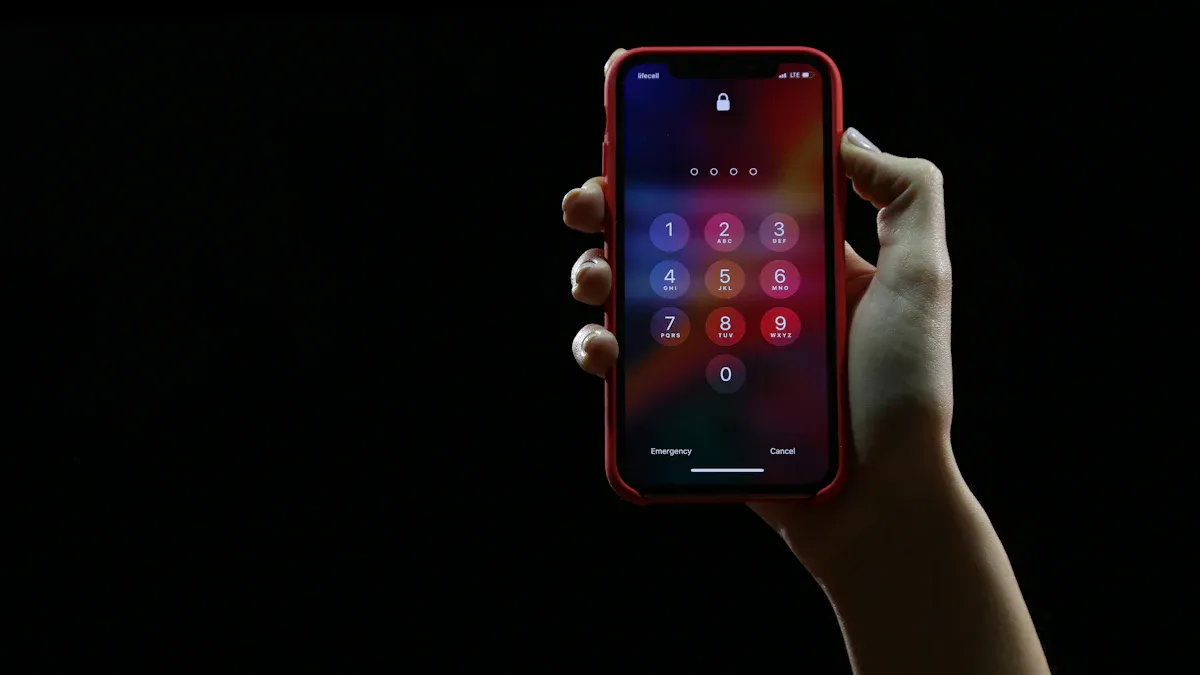
Biometric security features, like fingerprint and face recognition, offer a robust way to protect your smartphone. These methods use unique physical traits to verify your identity. They provide several benefits:
Enhanced Security: Biometric data is difficult for unauthorized parties to access or replicate. This significantly reduces the risk of data breaches.
Convenience: You can unlock your device quickly without remembering complex passwords.
Accuracy: Biometric systems are highly precise, ensuring that only you gain access to your device.
Fingerprint Setup
Setting up fingerprint authentication on your smartphone is straightforward. Follow these steps:
Ensure your device has a fingerprint scanner and is compatible with Android Marshmallow (version 6.0) or later.
Set your device lock screen to a password, PIN, or pattern.
Go to your device’s settings and find the “Security” or “Biometrics” section.
Select “Fingerprint” and follow the prompts to register your fingerprint. Make sure to scan different parts of your finger for better accuracy.
Test the setup by locking your device and using your fingerprint to unlock it.
Face Recognition
Face recognition is another effective biometric login method. It allows you to unlock your device effortlessly. Here’s how to set it up:
Go to your device settings and find the “Security” or “Biometrics” section.
Select “Face Recognition” and follow the prompts to scan your face. Ensure you are in a well-lit area for the best results.
Once set up, you can unlock your device simply by looking at it.
Facial recognition minimizes risks of shoulder surfing attacks, making it a secure option for many users. A survey by VISA indicated that over 86% of participants prefer biometric methods like facial recognition over traditional passwords for identity verification.
Feature | Fingerprint Recognition | Facial Recognition |
|---|---|---|
Accuracy | High, but can be affected by dirt or moisture | Very high, utilizes unique facial landmarks |
Convenience | Requires physical contact | Non-intrusive, can be done at a distance |
Security | Vulnerable to spoofing with high-quality prints | Difficult to replicate, unique facial features |
User Experience | May require user to place finger correctly | Quick and seamless interaction |
By using biometric authentication, you enhance your smartphone’s security while enjoying the convenience of quick access.
App Permissions
App permissions play a vital role in smartphone security settings. They determine which data and features apps can access on your device. Regularly reviewing these permissions helps you maintain control over your personal information and protect your privacy.
Reviewing Permissions
You should frequently check app permissions to limit access to sensitive data. Many apps request permissions that may not be necessary for their functionality. For example, a simple flashlight app does not need access to your contacts or location. By managing these permissions, you can reduce the risk of unauthorized access to your personal information.
Here are some common risks associated with granting excessive app permissions:
Permissions for cameras and microphones can lead to alarming exposures if not properly managed. Malicious actors could exploit unrestricted microphone access to eavesdrop on conversations or use a camera without consent to spy on users.
Permissions like SMS and phone calls can be exploited to send premium-rate messages or make unauthorized calls.
Access to sensitive personal data through permissions for contacts, microphone, camera, and call logs can lead to spying or identity theft.
Broad control permissions, such as device administrator and accessibility services, can allow malicious apps to lock you out of your device or monitor your activities.
To manage app permissions effectively, follow these steps:
Open your device settings.
Navigate to the “Apps” or “Applications” section.
Select the app you want to review.
Tap on “Permissions” to see what access the app has.
Adjust the permissions as needed, disabling any that seem unnecessary.
Location Access
Location access is particularly sensitive. Apps can request your location for various reasons, but this can lead to privacy risks. Developers may share your location data with third parties, leading to targeted advertising or even surveillance. Here are some potential risks of granting location access:
Mobile apps can request access to personal information, including location data.
Granting location access can lead to data leakage, where sensitive information is accessed without oversight.
Users may be tracked across different apps, leading to privacy violations.
There are compliance risks with regulations like GDPR and HIPAA, which can result in costly penalties.
To protect your location data, consider these best practices:
Best Practice | Description | Location in Settings |
|---|---|---|
Regularly review app permissions | Minimize unnecessary access to sensitive data, location, microphone, etc. | N/A |
Privacy Dashboard | Shows a timeline of app access to location, camera, mic, etc. | Settings → Privacy → Privacy Dashboard |
Microphone & Camera Toggles | Global switch to turn off mic and/or camera access. | Quick Settings or Settings → Privacy |
One-Time Permissions | Grants temporary access to location, mic, or camera. | Appears during permission prompt |
Auto-Reset Permissions | Automatically removes app permissions after inactivity. | Settings → Apps → App Info → Permissions |
App Privacy Report | Logs which apps access your mic, camera, location, contacts, etc. | Settings → Privacy & Security → App Privacy Report |
By following these guidelines, you can better manage app permissions and protect your personal data.
Android Security Settings
Android security settings play a crucial role in protecting your smartphone from theft and unauthorized access. Enabling these features can help you recover your device if it gets lost or stolen.
Theft Protection
To safeguard your device, you should enable theft protection features. These settings help prevent unauthorized access and increase the chances of recovering your phone. Here are some key features available on Android devices:
Feature | Description |
|---|---|
Factory reset upgrade | Prevents thieves from resetting stolen devices, requiring user credentials to set up again. |
Private space | Hides sensitive apps behind a separate PIN-locked area for added security. |
Automatic AI-powered screen lock | Locks the screen if theft motion is detected, protecting data from immediate access. |
Remote Lock | Allows users to lock their phone remotely using their phone number, providing a quick response to theft. |
To enable these theft protection features, follow these steps:
Use a strong screen lock (PIN, password, or long pattern).
Turn on Android Theft Protection.
Enable Find My Device Hub.
Set up Remote Lock at android.com/lock.
Remove Airplane Mode from Quick Settings.
To enable Android’s Theft Protection Features, go to:
Settings > Security & Privacy > Device Unlock > Theft Protection
Enable Theft Detection Lock: Locks your screen if the phone detects it’s been snatched.
Enable Offline Device Lock: Locks your screen shortly after the device goes offline.
By taking these steps, you can significantly enhance your smartphone’s security and protect your personal data.
Privacy Settings
Privacy settings are essential for controlling how apps access your personal information. You should regularly review these settings to ensure your data remains secure. Here are some critical privacy settings to consider:
Enable Advanced Protection Mode: This feature restricts app installs to the Play Store and enhances malware scanning.
Activate Identity Check: This requires biometric authentication for accessing sensitive settings outside trusted locations.
Set Up Private Space: This creates a secure environment for sensitive apps, making them invisible to the rest of the OS.
Audit Your Privacy Permissions: Regularly check app permissions to ensure no unnecessary data sharing.
To access and modify your privacy settings on Android, follow these steps:
Go to Settings and tap on Apps.
Then select Special app access and hit Usage access.
Tap on an app you want to turn off usage access for and turn off the Permit usage access toggle.
By managing your privacy settings, you can protect your personal data from unauthorized access and ensure that your smartphone security settings remain effective.
Data Encryption
Data encryption is essential for protecting your personal information on smartphones. It secures sensitive data from unauthorized access, especially if someone loses or steals your device. Here are some key benefits of device encryption:
It protects sensitive information from unauthorized access.
It acts as a foundational layer of security for both personal and corporate data.
It ensures compliance with data protection regulations and minimizes the risk of data breaches.
Currently, about 10% of the world’s 1.4 billion Android phones have device encryption enabled by default. In contrast, approximately 95% of all iPhones come with device encryption enabled by default. This highlights the importance of enabling encryption on your device to enhance your smartphone security settings.
Device Encryption
To enable device encryption on your smartphone, follow these steps:
For Android devices:
Open the Settings app.
Tap on Security.
Select Encrypt phone.
Follow the prompts to start the encryption process.
For iOS devices:
Open the Settings app.
Tap on Face ID & Passcode or Touch ID & Passcode.
Enable Data Protection by setting a passcode.
Once you enable encryption, your data will be protected, even if someone gains access to your device.
End-to-End Encryption
End-to-end encryption (E2EE) is another critical aspect of data protection. It ensures that only you and the intended recipient can read the messages you send. Here’s how it works:
Step | Description |
|---|---|
Data encryption | Your device converts the original content into an unreadable format called ciphertext. |
Transmission | The encrypted data travels across the internet, remaining unreadable to unauthorized parties. |
Decryption | The recipient’s device uses a private key to convert ciphertext back into readable text. |
Authentication | This verifies that the message has not been tampered with during transmission using digital signatures. |
Many popular messaging apps, such as WhatsApp and iMessage, offer end-to-end encryption by default. This feature protects your conversations from being intercepted, ensuring that only you and your contacts can access the information.
By understanding and implementing data encryption, you can significantly enhance your smartphone security settings and protect your personal data.
In summary, securing your smartphone is essential to protect your personal data. You should regularly update your smartphone security settings to defend against evolving threats. Key actions include enabling theft protection features, managing app permissions, and using strong passwords. Remember, 83% of phishing sites target mobile devices, making it crucial to stay vigilant. Take immediate steps to enhance your smartphone security settings today. Your data deserves the best protection!
