


Sharp photos make a difference in capturing memories. Small tweaks in your iPhone camera settings can significantly improve your images. Explore these settings to unlock your photography potential. You’ll be amazed at the clarity and detail you can achieve with just a few adjustments.
Key Takeaways
Adjust exposure to enhance image sharpness. Tap on your subject in the Camera app to access the exposure slider. Brightening or darkening your image can reveal more detail.
Shoot in RAW format for the best quality. RAW files retain all data from the camera sensor, allowing for better adjustments in editing without losing detail.
Utilize natural light for stunning photos. Shoot during the golden hour for soft, warm light that enhances your images and adds depth.
Key iPhone Camera Settings
Adjusting Exposure for Sharpness
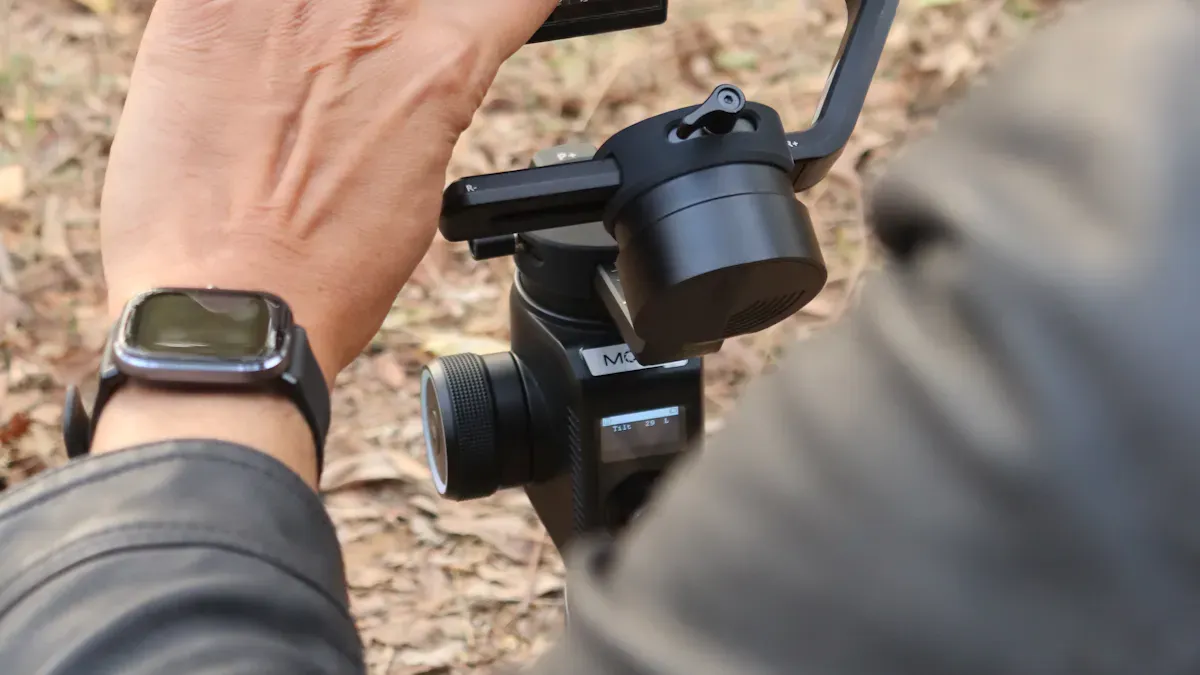
Exposure plays a crucial role in achieving sharper images. It determines how light or dark your photos appear. If your image is under-exposed, it may lack detail in the shadows. Conversely, over-exposed images can lose detail in the highlights. To adjust exposure on your iPhone, follow these steps:
Open the Camera app.
Tap on your subject to set the focus. This action will bring up the exposure slider.
Slide the sun icon up to brighten the image or down to darken it.
Proper exposure enhances details and skin tones, allowing you to capture the essence of your subject. You can also use HDR mode, especially in low light, to improve image quality. This setting combines multiple exposures to create a balanced photo with better detail in both shadows and highlights.
Shooting in RAW Format
Shooting in RAW format offers significant advantages for image sharpness and quality. Unlike JPEG, RAW files retain all unmodified data from the camera sensor. This preservation allows for extensive adjustments in exposure, color, and sharpness during post-processing. Here are some key benefits of using RAW format:
Advantage | Description |
|---|---|
Preserves Highest Quality | RAW files maintain the highest quality image for editing, ensuring no data loss. |
Higher Dynamic Range | RAW images capture more tonal values per color channel, improving detail recovery in lighting. |
Broader Post-Production Capabilities | RAW files provide more data for effective denoising and sharpening without losing quality. |
When you edit RAW images, you can recover details in both highlights and shadows that JPEG files cannot match. This capability results in higher quality images after editing, making RAW the preferred choice for serious photography.
Using Macro Control for Detail
Macro photography allows you to capture fine details that standard photography might miss. When using your iPhone’s macro mode, you can focus on subjects just a few centimeters away. This feature enhances your ability to capture intricate textures, such as the veins of a leaf or the details of a small insect. Here are some tips for effective macro photography:
Keep your iPhone steady. Use a mini tripod or beanbag for support.
Utilize the image stabilization features available in many iPhone models.
Experiment with lighting. Proper lighting enhances visibility and reduces harsh shadows.
By activating macro mode, you can explore a world of detail that adds depth to your photos. Consider using external macro lenses for even greater magnification and detail.
Tips for Better iPhone Photos
Stabilizing Your iPhone
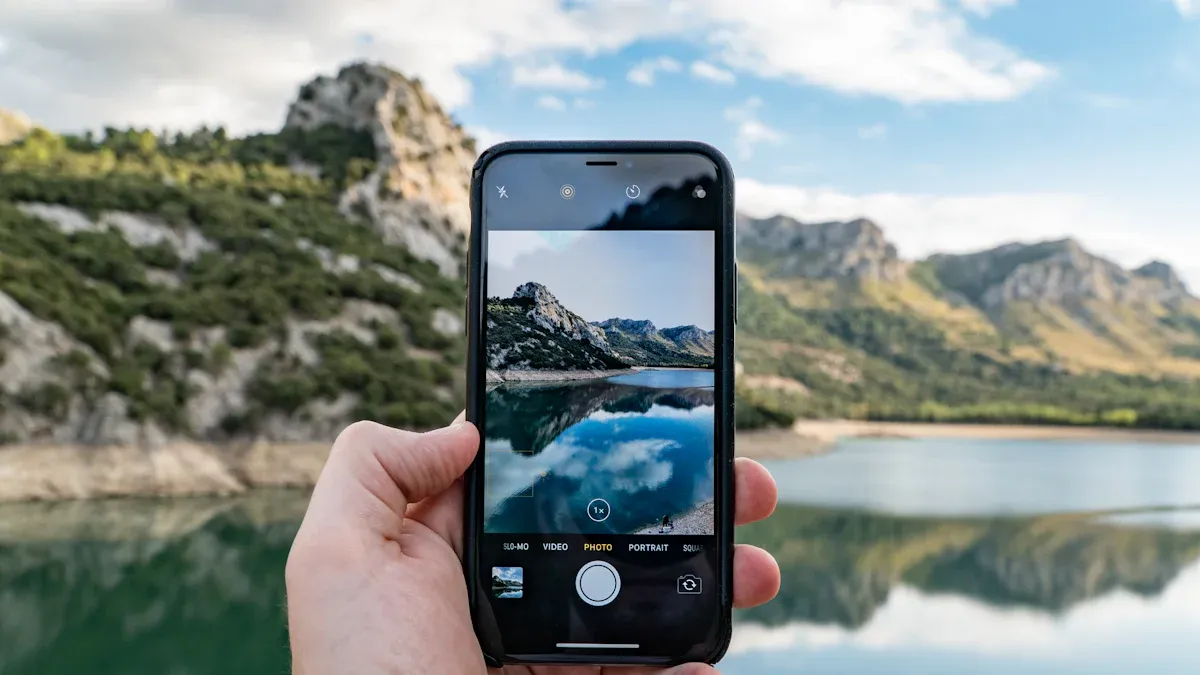
Stability is key to capturing sharp images. You can reduce blur by using several techniques:
Support your hands on a stable surface like a table or railing.
Keep your elbows against your torso or crouch to stabilize your iPhone on your knees.
Relax and slow your breath to minimize shake.
Use the on-screen shutter button or volume buttons on earbuds to avoid additional movement.
For maximum stability, consider using a tripod. A tripod provides a solid base, especially in low-light conditions. Ensure you set it up properly to maximize sharpness.
Utilizing Natural Light
Natural light can dramatically improve your photos. The best times to shoot are during the golden hour, shortly after sunrise or before sunset. This time offers soft, warm light that enhances your images. Here’s a quick guide:
Time of Day | Description |
|---|---|
Golden Hour | Soft, reddish-pink light that creates beautiful images. |
Afternoon | Slightly yellow light that enhances skin tones and reduces harsh shadows. |
Blue Hour | Low contrast and cool pastel undertones before sunrise and after sunset. |
Using natural light effectively can lead to better iPhone photos with more depth and detail.
Avoiding Wide Open Apertures
Shooting with a wide open aperture can lead to a shallow depth of field. While this effect can be appealing, it may also reduce sharpness in your images. Instead, consider using a smaller aperture. This adjustment increases the depth of field, allowing more of your image to be in focus. Aim for an aperture that is two or three stops from the maximum to optimize sharpness while minimizing diffraction effects.
By applying these tips, you can significantly enhance the quality of your iPhone photography.
Advanced Techniques for Sharper Images
Preserving Camera Settings
To achieve sharper images, you should preserve your camera settings. This practice allows you to maintain consistency across your photography sessions. Here are some tips to help you keep your settings intact:
Use the Camera App’s Settings: Familiarize yourself with the settings available in the Camera app. Adjust settings like exposure and focus before taking your shots.
Save Your Favorite Settings: If you find a combination that works well, note it down. This way, you can quickly replicate it in future photography sessions.
Utilize the Grid Feature: Enable the grid in your camera settings. This feature helps you align your shots and maintain a steady composition.
By preserving your settings, you can streamline your photography process and focus on capturing the moment.
Optimal Aperture Settings
Aperture settings significantly impact the depth of field and sharpness of your images. On an iPhone, you can simulate aperture adjustments in Portrait mode. For instance, setting the aperture to f/1.4 creates a strong background blur, while f/16 results in a deep depth of field where everything is in focus. Here’s how to choose the right aperture:
Shallow Depth of Field: Use a wider aperture (like f/1.4) for portraits or subjects where you want to isolate the focus. This setting blurs the background, drawing attention to your subject.
Deep Depth of Field: Opt for a smaller aperture (like f/8 or f/16) when capturing landscapes or group photos. This setting keeps more of the scene in focus, enhancing overall sharpness.
Adjusting your aperture settings allows you to control how much of your image remains sharp, giving you creative freedom in your photography.
Post-Processing for Enhanced Detail
Post-processing plays a crucial role in enhancing the detail and sharpness of your iPhone photos. Here are some effective techniques to consider:
Adjust Brightness and Contrast: Increasing brightness and contrast can significantly improve the overall sharpness and detail in your photo.
Use Filters Wisely: Applying the Relic filter at about 25% strength can enhance cool tones without overwhelming your image.
Avoid Over-Sharpening: Be cautious when cropping images, as over-sharpening can negatively affect overall sharpness. Instead, focus on subtle adjustments to maintain quality.
Several popular editing apps can help you achieve these enhancements. For example, Adobe Lightroom offers extensive adjustments and high-quality output, making it a top choice for improving sharpness. Luminar Neo utilizes AI-driven enhancements, while Snapseed provides professional-quality tools for sharpening images.
By mastering post-processing techniques, you can elevate your iPhone photography and capture stunning, sharp images.
Adjusting your iPhone camera settings is essential for capturing sharper photos. Small changes can lead to significant improvements in image quality. Experiment with techniques like shooting in RAW format and adjusting exposure.
Remember, common challenges like OIS malfunction or dust on the lens can affect your results.
Share your experiences and results with these tips. Your journey in photography can inspire others!
FAQ
What is the best way to hold my iPhone for sharp photos?
Hold your iPhone with both hands. Keep your elbows close to your body for stability. This reduces shake and improves sharpness.
How can I improve low-light photography on my iPhone?
Use Night mode for better low-light shots. Stabilize your iPhone and avoid moving while the camera captures the image.
Should I always use HDR mode?
Use HDR mode in high-contrast scenes. It balances highlights and shadows, enhancing detail. Turn it off in low-contrast situations for natural results.
