

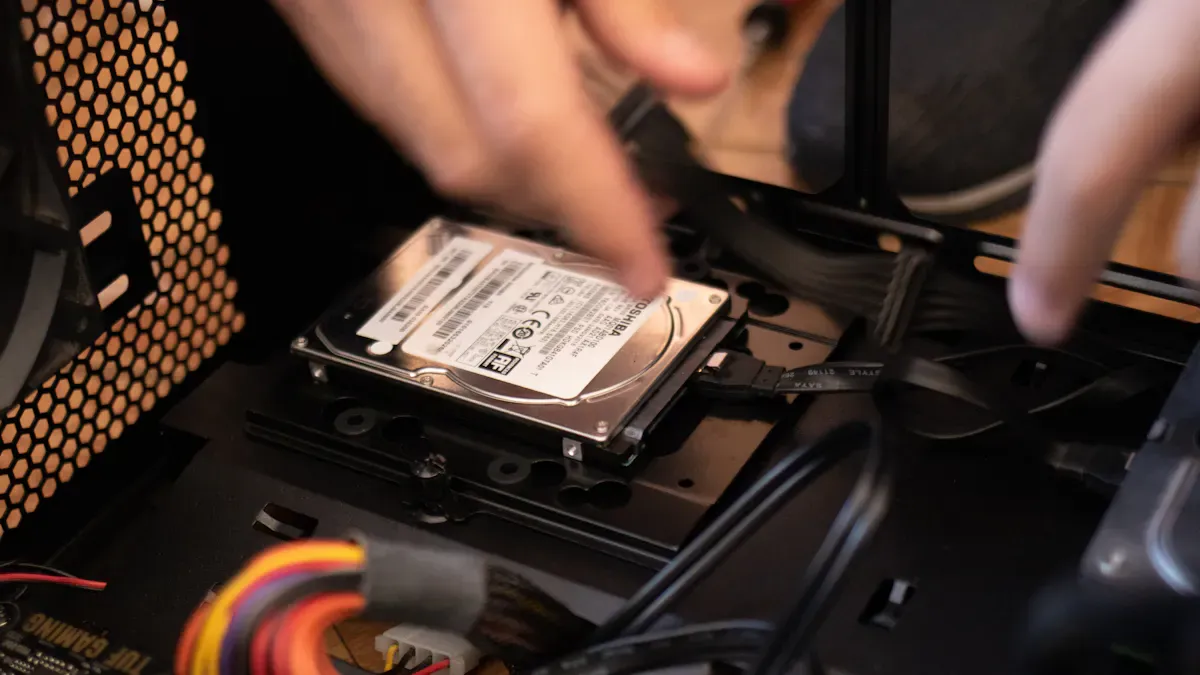
Upgrading your laptop’s storage can transform your computing experience. You often find yourself running out of space, limiting your ability to store important files or install new applications. A storage upgrade not only increases your available space but also enhances your laptop’s overall functionality. With more room, you can keep your files organized and access them quickly. Understanding the storage upgrade benefits can help you make informed decisions about your device.
Key Takeaways
Upgrading your laptop’s storage increases available space, allowing you to store more files and applications without worry.
Switching from an HDD to an SSD significantly boosts your laptop’s speed, improving boot times and application loading.
A well-organized file management system enhances efficiency, making it easier to find and access your important documents.
Consider integrating cloud storage with your local upgrade for better accessibility, data security, and automatic backups.
Investing in a storage upgrade not only improves performance but also extends your laptop’s usable life, making it a smart choice.
More Storage

Storage Upgrade Benefits
Upgrading your laptop’s storage offers several significant benefits. First, you gain larger capacity for your files, applications, and media. This extra space allows you to store more documents, photos, videos, and software without constantly worrying about running out of room. Here are some common reasons users seek to upgrade their laptop storage:
To increase storage space: Many older laptops come with limited storage. Upgrading can provide ample space for files and reduce reliance on cloud storage.
To increase overall responsiveness: Upgrading to an SSD can significantly improve boot times and the overall speed of the laptop, enhancing productivity.
To repurpose the laptop: Adding an SSD allows you to transform an old laptop into a home lab or a retro game emulator, making it useful for new tasks.
With more storage, you can install essential applications that enhance your productivity. Whether you need software for graphic design, video editing, or gaming, having sufficient space means you can keep everything you need at your fingertips.
Types of Upgrades
When considering a storage upgrade, you have several options. Here’s a quick overview of the main types of laptop storage upgrades available on the market:
Type | Interface | Speed (Read/Write) | Compatibility |
|---|---|---|---|
SATA SSD | SATA | Up to 550MB/s | Widely supported, even in older laptops |
NVMe SSD | PCIe | Exceeds 3,000MB/s | Requires M.2 PCIe slot, ideal for power users and gamers |
Each type of upgrade has its advantages. SATA SSDs are often more affordable and compatible with a wider range of laptops. NVMe SSDs, on the other hand, offer superior speed, making them ideal for users who demand high performance.
Choosing the right upgrade depends on your needs and your laptop’s compatibility. Always check your laptop’s specifications before purchasing a new storage device.
Performance Boost
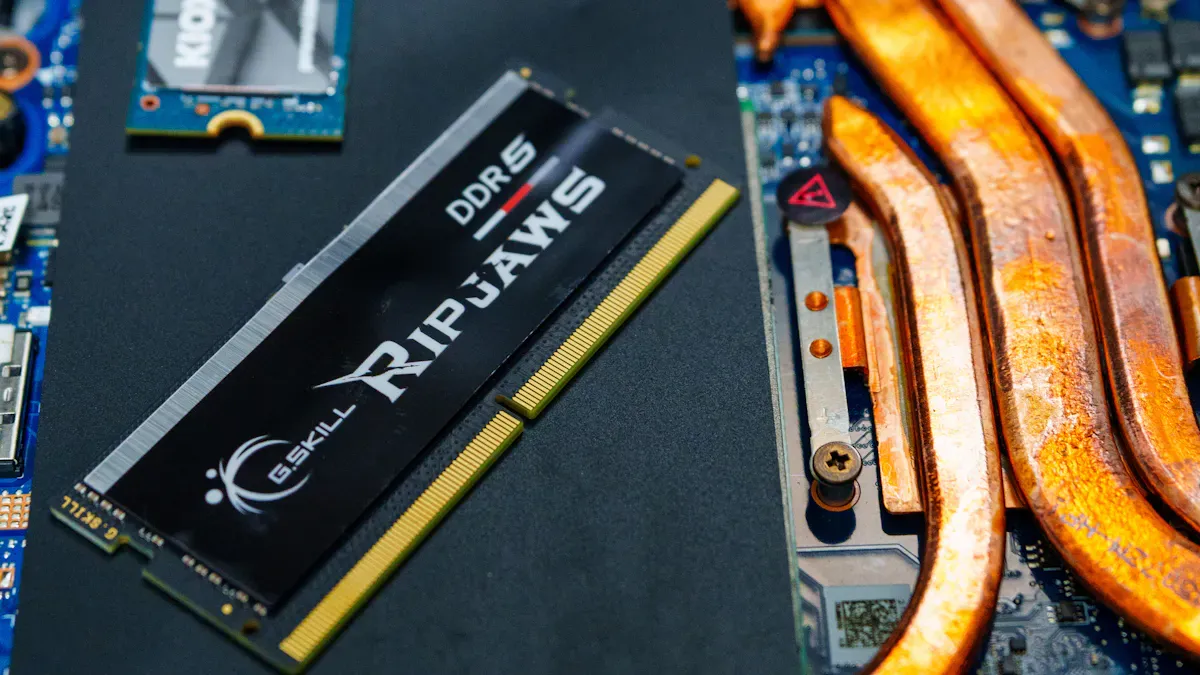
Upgrading storage can significantly enhance your laptop’s performance. One of the most noticeable improvements comes from switching from a traditional hard disk drive (HDD) to a solid-state drive (SSD). This change leads to faster boot times and quicker application loading, making your laptop feel more responsive.
Speed Improvements
When you upgrade to a faster SSD, you can expect remarkable speed improvements. Here’s a comparison of the performance between HDDs and SSDs:
Feature | HDD Speed | SSD Speed |
|---|---|---|
Boot Time | Slower | Up to 10 times faster |
Application Loading | Slower | Quicker |
Overall Responsiveness | Slower | Improved |
As you can see, SSDs provide a performance boost that makes everyday tasks smoother. You will notice that applications load faster, and your laptop responds more quickly to commands. This upgrade can save you valuable time, especially during busy workdays or gaming sessions.
Additionally, upgrading storage enhances data transfer rates. Here are some key benefits of switching to SSDs:
Upgrading from HDDs to SSDs significantly enhances data transfer rates due to SSDs’ superior random read/write speeds and lower latency.
SSDs eliminate delays caused by moving parts in HDDs, resulting in faster application loading times and reduced wait times during gameplay.
The transition to SSDs can save players several minutes of loading time per session, leading to a more efficient gaming experience.
Energy Efficiency
Another advantage of upgrading to SSDs is improved energy efficiency. SSDs consume less power than traditional HDDs, which can lead to longer battery life for your laptop. Here are some benefits of this upgrade:
SSDs enhance energy efficiency, which can lead to improved battery life for laptops.
Upgrading to SSDs can make your system feel more responsive, potentially contributing to longer battery life.
By choosing SSDs, you not only boost your laptop’s performance but also help reduce energy consumption. This is important for both your device’s longevity and the environment.
Organizing Files
File Management Tips
After upgrading your laptop’s storage, organizing your files becomes essential. A clear file management system can improve your efficiency and help you find what you need quickly. Here are some effective tips to consider:
Create a clear organizational system: Start by setting up three main folders: Incoming, Working, and Archive. The Incoming folder holds new files, the Working folder contains active projects, and the Archive folder stores completed items. This method helps you manage files efficiently and keeps your workspace tidy.
Name files consistently: Use descriptive names for your files. This practice ensures clarity and context, making it easier to locate documents later.
Regularly clean out unnecessary files: Schedule time to review your folders. Remove files you no longer need to maintain organization and free up space.
Monitor your Working folder: Keep this folder updated by removing old files that are no longer in use. This step prevents clutter and enhances your laptop’s performance.
Disorganized digital clutter can slow down your laptop’s performance by up to 20%. A well-structured file management system enhances file retrieval speed, saving you time and increasing productivity.
Utilizing Cloud Storage
In addition to local storage upgrades, consider using cloud storage. This option provides several advantages:
Accessibility: Access your files from anywhere with an internet connection. This feature is especially useful for collaboration and remote work.
Data synchronization: Cloud services automatically update files across devices, ensuring you always have the latest version.
Data security: Leading providers use encryption and security measures to protect your sensitive documents from unauthorized access.
Automatic backups: Cloud storage regularly backs up your files without manual intervention, reducing the risk of data loss.
However, be aware of some disadvantages. Cloud storage requires a reliable internet connection, and there may be risks of service downtime. Additionally, privacy concerns exist when storing sensitive data on third-party servers.
By integrating cloud storage with your upgraded laptop storage, you can maximize your efficiency and keep your files organized.
Upgrading your laptop’s storage offers numerous benefits that enhance both personal and professional use. Here are some key takeaways from recent studies:
Key Takeaway | Description |
|---|---|
Storage decisions span multiple platforms | Modern storage choices involve endpoints, cloud platforms, and backup systems. |
User experience is paramount | Performance is defined by how storage impacts user experience, not just speed. |
Security is essential | Encryption and security measures are now fundamental requirements. |
Consider these advantages when upgrading your storage:
Fast local NVMe storage enhances responsiveness.
Intelligent cloud sync minimizes latency.
Reliable access is vital for remote and hybrid work.
Investing in a storage upgrade not only boosts performance but also extends your laptop’s usable life, making it a smart choice for efficiency and productivity.
FAQ
What is the best type of storage upgrade for my laptop?
The best type depends on your needs. If you want speed, choose an NVMe SSD. For compatibility and cost, a SATA SSD works well. Always check your laptop’s specifications before upgrading.
How do I know if my laptop supports an SSD upgrade?
Check your laptop’s manual or manufacturer’s website. Look for information on storage compatibility, specifically if it has an M.2 slot for NVMe SSDs or a SATA connection for SATA SSDs.
Will upgrading my storage void my laptop warranty?
Upgrading storage may void your warranty, depending on the manufacturer. Always review your warranty terms or consult customer support before making any hardware changes.
Can I upgrade my laptop storage myself?
Yes, you can upgrade your laptop storage yourself if you feel comfortable with basic hardware tasks. Follow online guides specific to your laptop model for step-by-step instructions.
How much storage do I need for everyday use?
For everyday tasks, 256GB to 512GB is usually sufficient. If you store large files, like videos or games, consider 1TB or more to ensure you have enough space.
