

RAM plays a crucial role in your computer’s ability to handle multiple tasks at once. By focusing on RAM usage optimization, you can significantly boost your system’s performance and enhance your multitasking capabilities. This leads to smoother transitions between applications and quicker response times. Have you ever felt frustrated when your computer slows down during heavy multitasking?
Key Takeaways
Optimize your RAM by closing unnecessary applications to free up memory for important tasks.
Manage startup programs to improve boot time and overall system performance.
Reduce browser memory usage by closing unused tabs and disabling unnecessary extensions.
Monitor RAM usage with tools like Task Manager or Activity Monitor to identify memory hogs.
Consider upgrading to at least 16GB of RAM for effective multitasking, especially for resource-intensive applications.
The Role of RAM in Multitasking
Understanding RAM Basics
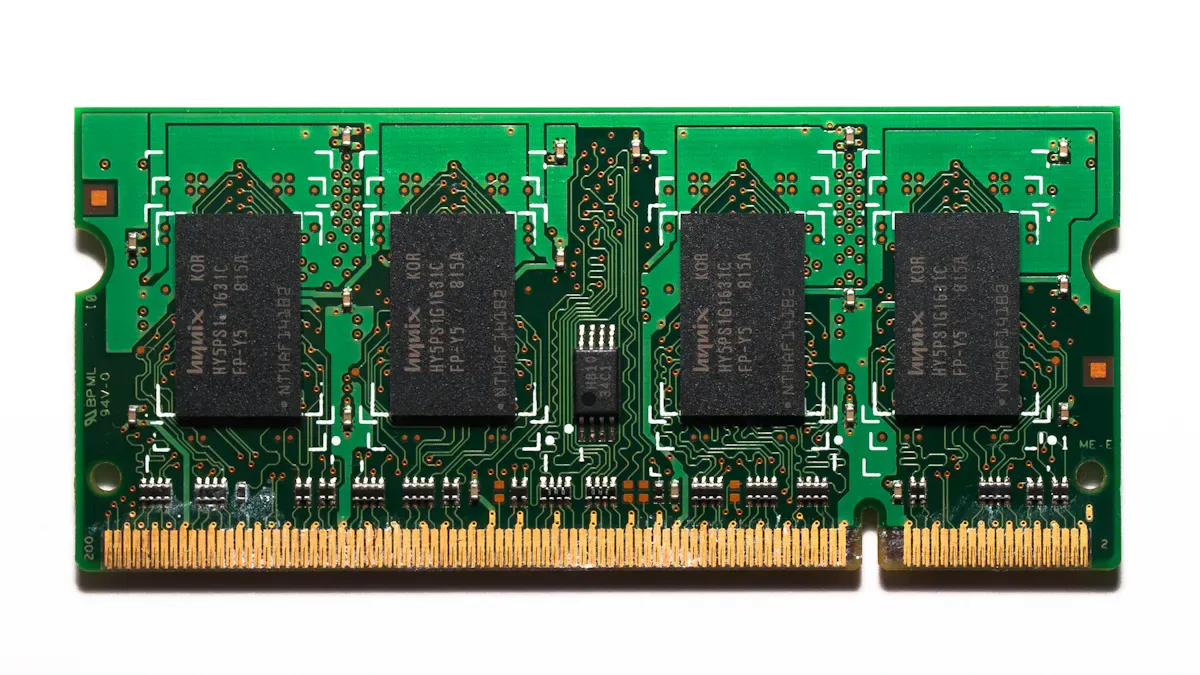
Random access memory (RAM) serves as your computer’s main memory. It provides temporary storage for the operating system, software programs, and any data currently in use. This allows your device’s processor to access information quickly. Unlike secondary storage, such as hard drives, RAM is much faster to read from and write to. However, it is important to remember that RAM is volatile. This means it only retains data while your computer is powered on. If you lose power, you also lose the data stored in RAM. When you reboot your computer, the operating system and other files must reload into RAM from your hard drive or solid-state drive.
How RAM Affects Performance
The amount of RAM in your computer directly impacts its multitasking capabilities. When you run multiple applications at once, each one consumes a portion of your RAM. If you have sufficient RAM, your computer can handle several tasks simultaneously without slowing down. For example, having ample RAM allows you to run resource-intensive applications like video editing software or graphic design tools while browsing the web or streaming videos.
Here are some key points about how RAM affects performance:
Smooth Switching: Sufficient RAM enables smooth transitions between applications. You can switch from one task to another without experiencing lag.
Enhanced Performance: Higher RAM capacities, such as 16GB or more, significantly improve performance during multitasking. This is especially true for demanding applications.
Memory Management: The operating system manages memory access to prevent unauthorized use. This ensures stability and security while you multitask.
To optimize your multitasking experience, aim for at least 32GB of RAM if you frequently use multiple applications. For even more demanding tasks, consider upgrading to 64GB. This will help you manage heavy multitasking efficiently.
Tips for RAM Usage Optimization
Closing Unnecessary Applications
To enhance your RAM usage optimization, start by closing applications you do not need. Many programs run in the background, consuming valuable memory. This can slow down your system and hinder your multitasking capabilities. Here’s how to identify and close these applications:
Open Task Manager: Press Ctrl + Shift + Esc on Windows or Command + Option + Esc on macOS.
Review Running Applications: Look for programs that you are not actively using.
End Tasks: Select the unnecessary applications and click “End Task” or “Force Quit.”
By regularly closing these applications, you can free up RAM for more important tasks, leading to smoother multitasking performance.
Managing Startup Programs
Startup programs can significantly affect your computer’s performance. When you boot your system, these programs automatically launch, consuming RAM and slowing down your startup time. To manage these programs effectively:
Open Task Manager: Press Ctrl + Shift + Esc.
Navigate to the Startup Tab: Click on the “Startup” tab to see a list of programs that run at startup.
Analyze Impact: Review the impact ratings of each program.
Disable Unnecessary Programs: Right-click on any program you don’t need at startup and select “Disable.”
By limiting the number of startup programs, you can create an efficient PC that boots faster and performs better during multitasking.
Reducing Browser Memory Usage
Web browsers can be significant RAM hogs, especially with multiple tabs open. To optimize RAM while browsing, consider these steps:
Close Unused Tabs: Each open tab consumes memory. Close tabs you no longer need.
Disable Unnecessary Extensions: Go to your browser’s extension settings and remove or disable extensions you rarely use.
Clear Cache and Cookies: Regularly clear your browser’s cache and cookies to free up memory. You can do this through the settings menu.
Use Task Manager: For Chrome users, open Chrome’s Task Manager (Shift + Esc) to see which tabs or extensions are using the most RAM.
By implementing these strategies, you can significantly reduce browser memory usage, allowing for more efficient multitasking and a smoother experience overall.
Monitoring and Managing RAM
Tools for Monitoring RAM
To optimize your RAM usage, you need to monitor it effectively. Several tools can help you track RAM usage on different operating systems. Here are some reliable options:
Task Manager: This built-in tool on Windows shows real-time processes, CPU, and memory usage.
Activity Monitor: For macOS users, this tool provides insights into memory usage and running applications.
VmStat: This command-line tool for Linux offers statistics on virtual memory and system processes.
These tools help you identify which applications consume the most RAM. For instance, RAMMap provides a detailed breakdown of memory usage by allocation type, unlike standard task managers.
Feature | Description |
|---|---|
Memory Breakdown | RAMMap shows memory usage by allocation type, helping you understand how RAM is distributed. |
Use Counts Tab | Displays memory usage by different categories, revealing hidden memory consumption. |
Processes Tab | Offers a per-process breakdown of memory usage, including private and modified memory. |
File Summary Tab | Shows which files consume the most cached memory, aiding in identifying memory hogs. |
Checking for Memory Leaks
Memory leaks can significantly affect your computer’s performance. You might notice gradual performance degradation, out-of-memory errors, or inconsistent behavior in applications. These signs indicate that some applications may not be releasing memory properly.
To detect and resolve memory leaks, consider these steps:
Use Chrome DevTools to analyze memory usage and identify leaks.
Implement automated tools for memory leak detection.
Conduct code reviews to catch common memory leak patterns.
Understanding memory management concepts, such as WeakReference, can help you avoid memory leaks. This allows the garbage collector to reclaim memory when necessary.
Adjusting your virtual memory settings can also enhance system performance. Properly configured virtual memory can improve multitasking and stability, especially when running memory-intensive applications.
Properly configured virtual memory can enhance system stability and performance, especially when running memory-intensive applications.
By monitoring your RAM and addressing memory leaks, you can ensure a smoother multitasking experience.
Optimizing your RAM is essential for effective multitasking. It enhances your computer’s performance, allowing you to switch between tasks smoothly. Implement the tips discussed to close unnecessary applications, manage startup programs, and reduce browser memory usage.
Consider exploring advanced RAM management tools like:
Windows RAM & Performance Optimizer: Cleans memory and monitors usage in real-time.
Wise Memory Optimizer: Frees up RAM automatically based on your settings.
Neglecting RAM optimization can lead to impaired focus, reduced productivity, and increased stress. Take action now to improve your multitasking experience!
FAQ
What is RAM, and why is it important for multitasking?
RAM, or Random Access Memory, temporarily stores data for your operating system and applications. It allows your processor to access information quickly, improving multitasking performance by enabling smooth transitions between tasks.
How can I check my RAM usage?
You can check RAM usage using Task Manager on Windows or Activity Monitor on macOS. These tools display real-time memory usage and help you identify which applications consume the most RAM.
What are memory leaks, and how do they affect performance?
Memory leaks occur when applications fail to release memory after use. This can lead to decreased performance, causing your CPU to struggle with multitasking. Regular monitoring can help you identify and fix these issues.
How much RAM do I need for effective multitasking?
For effective multitasking, aim for at least 16GB of RAM. If you frequently run resource-intensive applications, consider upgrading to 32GB or more. This will ensure your processor can handle multiple tasks smoothly.
Can upgrading my RAM improve my computer’s performance?
Yes, upgrading your RAM can significantly enhance your computer’s performance. More RAM allows your CPU to manage multiple applications simultaneously without slowing down, leading to a better multitasking experience.
