


Running out of space on your phone can be frustrating, especially when you get that annoying “phone storage full” notification. To free up phone storage quickly, start by deleting unused apps and clearing cached files. These simple steps can give you immediate relief from storage woes.
Key Takeaways
Regularly delete unused apps to free up significant storage space. Check your app usage monthly to identify which apps to remove.
Clear cached files frequently to improve phone performance and reclaim storage. Aim to clear cache at least once a month.
Manage media files by deleting duplicates and organizing photos. Use cloud storage to keep important files accessible without taking up space.
Reasons for Storage Full

Unused Apps
One of the biggest culprits behind your phone storage full notifications is unused apps. You might download apps out of curiosity or for a specific purpose, but many of them end up sitting idle on your device. These apps take up valuable space, even if you don’t use them.
Tip: Regularly review your apps and delete those you haven’t used in the last month. This simple action can free up significant storage space.
Additionally, some apps, like social media platforms, can accumulate hidden data. For instance, apps like WhatsApp and Facebook store media files that you may not see but still occupy space. This hidden app data can contribute to your storage issues without you even realizing it.
Cached Files
Cached files are another major reason for storage full problems. When you use apps, they save temporary files to help them load faster next time. Over time, these cached files can pile up and consume a lot of space.
Here’s a quick list of common sources of cached data:
Photos and videos from messaging apps
Offline music from streaming services
Cached data from social media apps
When you receive photos or videos through messaging apps, they often save automatically. This can lead to significant storage consumption over time. Similarly, offline music and cached data from social media apps can accumulate, further exacerbating your storage issues.
To tackle this, you should regularly clear cache from your apps. This not only helps free up space but can also improve your phone’s performance.
Note: Clearing cache is different from deleting an app. It removes temporary files without affecting your saved data.
How to Free Up Phone Storage
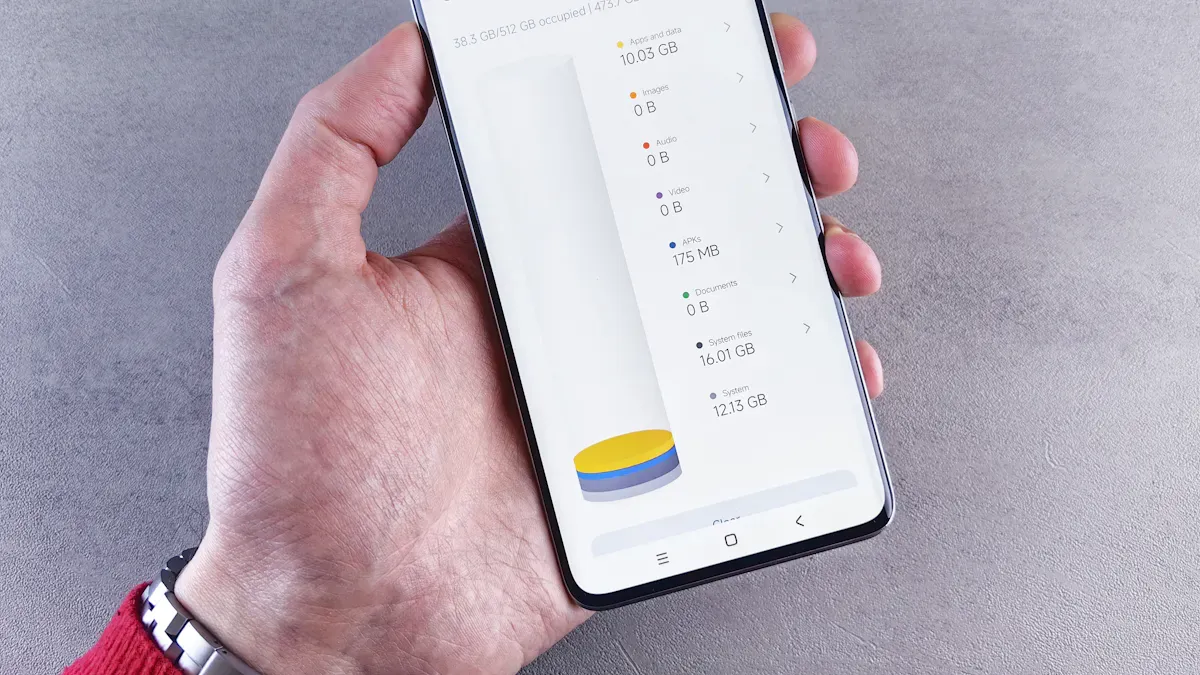
When your phone storage is full, you need effective solutions to reclaim space quickly. Here are some proven fixes that can help you manage data storage effectively.
Delete Unused Apps
Start by reviewing the apps on your phone. You might be surprised to find many that you haven’t used in ages. Here’s how to identify and remove unnecessary apps:
Android: Go to Settings > Apps. Look for the “Unused Apps” option to see which apps you haven’t opened in months.
iPhone: Open the App Store, tap your profile icon, and go to Manage Apps & Devices. This will show you apps sorted by usage frequency.
Regularly deleting apps you don’t use can free up significant space. If you’re unsure about an app, consider archiving it instead of deleting it. This way, you can keep your data while freeing up storage.
Clear Cache
Clearing the cache is another effective way to free up space. Cached files can accumulate over time, leading to insufficient storage available for new data. Here’s how to clear the cache on your device:
Android: Go to Settings > Storage > Cached Data. Tap to clear it.
iPhone: For Safari, go to Settings > Safari and select “Clear History and Website Data.”
While clearing the cache can temporarily remove some data, it can also improve app performance. Just remember that you might need to log back into some apps afterward.
Tip: Regularly clear the cache to prevent storage full issues. It’s a simple step that can make a big difference!
Manage Media Files
Media files, especially photos and videos, often take up the most space on your phone. Here are some tips to optimize data storage:
Go through your pictures and delete duplicates, mistakes, and screenshots.
Select only the best photos to keep, reducing the number of similar images.
Organize your photos into albums for easier access.
Regularly review and delete older photos you no longer need.
Empty the ‘Recently Deleted’ folder to reclaim storage space.
Consider using photo-sorting apps to help manage large volumes of images efficiently. Also, enabling features like ‘Optimize iPhone Storage’ can help save space by storing smaller versions of your photos on your device.
Use Cloud Storage
Cloud storage is a great way to free up space on your phone. It allows you to store files off your device while keeping them accessible. Here are some popular options:
Cloud Storage Platform | Free Storage Limit |
|---|---|
Apple iCloud | 5GB |
Google Drive | 15GB |
Dropbox | 2GB |
Using cloud storage can help you manage data storage without losing important files. Just remember to create strong passwords and enable two-factor authentication to keep your data secure.
Note: While cloud storage offers flexibility, be aware of potential costs if you need more space in the future.
By following these steps, you can effectively troubleshoot your phone storage full problems and enjoy a smoother experience. Regular maintenance is key to preventing storage issues in the future.
To keep your phone running smoothly, regularly check your storage. Delete unused apps, clear cached files, and manage your media. These steps can help you avoid that dreaded “storage full” message. Remember, a little maintenance goes a long way! Stay proactive and enjoy a clutter-free phone.
FAQ
What should I do if my phone storage is still full after deleting apps?
If your storage is still full, clear cached files and manage media files. Consider using cloud storage for additional space.
How often should I clear my cache?
You should clear your cache at least once a month. This helps maintain performance and prevents storage issues.
Can I recover deleted apps later?
Yes, you can reinstall deleted apps from the App Store or Google Play Store. Your data may be saved if you backed it up.
