

It’s incredibly frustrating when your mobile data is not working, especially when you know it’s activated. You rely on mobile data for everything—from work and communication to navigation. Without it, daily tasks can feel impossible. Common causes of mobile data not working include poor network coverage, temporary outages, and even software glitches.
Key Takeaways
Check your network settings to ensure everything is configured correctly. This can often resolve connectivity issues quickly.
Restart your device to clear temporary glitches and improve performance. This simple step can fix many mobile data problems.
If issues persist, consider resetting your network settings. This restores default configurations and can enhance your mobile data connection.
Causes of Mobile Data Not Working
Network Coverage Issues
One of the most common reasons you might find your mobile data not working is poor network coverage. If you’re in an area with weak signals, your device struggles to connect. This often happens in remote rural areas where infrastructure is lacking. Here’s a quick look at regions that typically face these issues:
Affected Regions | Description |
|---|---|
Remote rural areas | Often lack adequate infrastructure for mobile networks. |
Ocean routes | Difficult to deploy traditional networks due to vast distances. |
Air corridors | Coverage gaps exist as planes travel through areas without ground networks. |
Disaster zones | Infrastructure is often damaged or non-existent, leading to connectivity issues. |
If you’re traveling through these areas, you might experience dropped connections or slow speeds. Always check your signal strength before relying on mobile data.
Network Congestion and Outages
Another factor that can lead to mobile data issues is network congestion. This happens when too many users try to access the network at once, especially during peak hours. In urban areas, commuting patterns create predictable surges in demand. You might notice slower speeds or even complete outages during these times.
According to industry reports, 44% of organizations have faced major outages due to network or connectivity issues in the past three years. The most common causes include:
Configuration or change management failure: 45%
Third-party network provider failure: 39%
Hardware failure: 37%
Network/congestion failure: 12%
If you find your mobile data not working during busy times, it might just be a temporary issue due to congestion.
Hardware and Software Problems
Sometimes, the problem lies within your device itself. Hardware and software issues can disrupt your mobile data connection. Here are some common culprits:
Issue Type | Description |
|---|---|
Weak or No Signal Reception | Poor coverage can lead to connection problems, especially in remote areas or indoors. |
Incorrect Network Settings | Misconfigured network settings may prevent data access. |
APN Configuration Issues | Incorrect Access Point Name (APN) settings can disrupt mobile internet. |
Data Limits or Restrictions | Exceeding data limits may result in service suspension or speed throttling. |
Temporary Network Outages | Carrier network maintenance or outages can cause temporary disruptions. |
Software Bugs or Glitches | Outdated firmware or software issues can interfere with network connectivity. |
Physical Damage to SIM Card/Device | A damaged SIM card or phone can cause problems on devices. |
Receiving an Error Message | Error messages may indicate specific issues, such as authentication problems or a blocked connection. |
If you suspect a hardware issue, try cleaning your SIM card and reinserting it. You can also test the SIM in another device to see if it works there.
Effective Solutions for Mobile Data Issues
When your mobile data is not working, you want quick and effective solutions. Here are some steps you can take to troubleshoot and restore your internet access.
Check Network Settings
First, let’s check your network settings. Sometimes, minor glitches or misconfigurations can cause connectivity issues. Follow these steps to ensure everything is set up correctly:
Update System Software: Make sure your device is running the latest software. For iPhones, go to Settings > General > Software Update. For Android, navigate to Settings > System > Advanced > System Update. If an update is available, install it and restart your phone.
Check SIM Card Issues: Remove your SIM card and reinsert it. If possible, test it in another phone or try a different SIM card in your device to rule out any issues.
Reset Network Settings: This can often resolve persistent problems. On iPhones, go to Settings > General > Reset and select ‘Reset Network Settings’. For Android, head to Settings > System > Advanced > Reset Options and choose ‘Reset Network Settings’.
Verify APN Settings: Ensure your Access Point Name (APN) settings are correct. On Android, check under Settings > Network & Internet > Mobile Network > Advanced. For iPhones, go to Settings > Cellular Data Options > Cellular Data Network. Make sure these settings match your carrier’s specifications.
By following these steps, you can often fix issues related to mobile data not working. Many users report that adjusting network settings significantly improves their connectivity.
Restart Your Device
If checking your settings doesn’t help, try restarting your device. This simple action can resolve many issues. Restarting your smartphone can enhance its performance and security. It helps disrupt potential cyberattacks and eavesdropping attempts. Plus, it can clear memory issues, reduce overheating, and improve battery life.
Reset Network Settings
If you’re still having trouble, consider resetting your network settings. This process restores various features to their default state, including mobile data settings. It won’t erase personal data like photos or music, but it will remove saved Wi-Fi passwords and Bluetooth connections. Before you reset, keep these precautions in mind:
If you’ve set a manual IP address, you’ll need to reset it afterward.
Be prepared to re-enter Wi-Fi passwords to reconnect to your networks.
You may need to reinstall any network-related software you use.
Resetting network settings can be a powerful solution for improving mobile data connectivity. It often resolves misconfigurations that prevent access to reliable mobile data.
If you’ve tried all these solutions and still face issues, consider reaching out to your mobile carrier. They often have tools to help diagnose service problems quickly.
In summary, understanding the causes of mobile data issues can help you troubleshoot effectively. Key factors include network coverage, congestion, and device problems. If you face issues, try the steps outlined above.
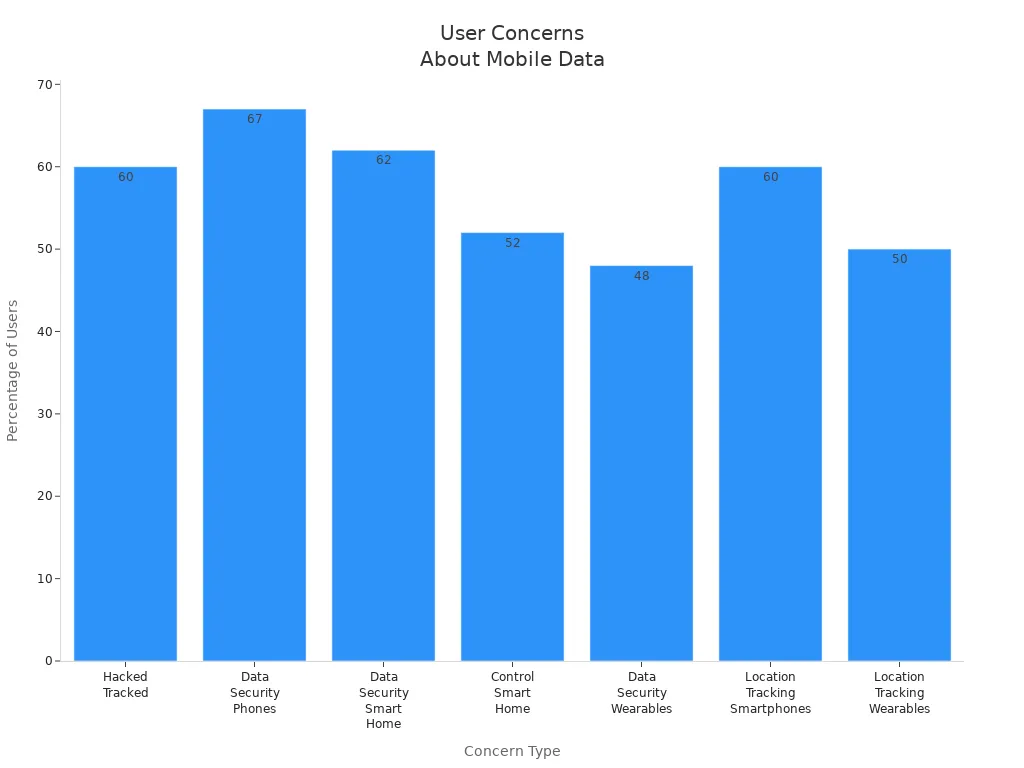
Remember, you’re not alone! Many users worry about data security, with 67% concerned about their phone’s safety.
If problems persist, don’t hesitate to reach out for help. You can access:
24/7 help desk services for immediate support.
A knowledge base for self-troubleshooting.
Professional IT tools for diagnosing hardware issues.
Stay connected and take control of your mobile data experience!
FAQ
What should I do if my mobile data is still not working after troubleshooting?
If your mobile data isn’t working, try connecting to wi-fi to see if the issue is with your carrier. If it works on wi-fi, contact your provider.
How can I check if there’s a network outage in my area?
You can visit your carrier’s website or use their app to check for outages. Social media platforms often provide real-time updates as well.
Is it better to use mobile data or wi-fi?
Using wi-fi is generally more stable and can save your mobile data. However, mobile data is essential when wi-fi isn’t available.
