

Managing your Android apps is crucial for maintaining optimal performance. Many users experience slowdowns, crashes, or excessive memory consumption due to poorly managed apps. Effective android app management can resolve these issues and enhance your device’s efficiency. By following practical solutions, you can significantly improve your current performance and enjoy a smoother experience with your Android apps.
Key Takeaways
Remove unused apps to boost your device’s speed and battery life. This simple step can lead to faster performance and less data usage.
Regularly clear your app cache to enhance loading times and reduce crashes. This maintenance keeps your device running smoothly.
Limit background processes to save battery and improve efficiency. Adjust settings to prevent apps from using data when not in use.
Remove Unused Apps

Identify Bloatware
Bloatware refers to pre-installed apps that you may never use. These apps can slow down your device and consume valuable resources. Removing bloatware can lead to significant improvements in your device’s performance. According to recent studies, deleting unused apps can enhance overall performance by reducing background activity. This reduction leads to faster processing, longer battery life, and lower data consumption. Here’s a quick overview of the benefits of removing unused apps:
Benefit | Description |
|---|---|
Faster overall performance | Reducing background activity enhances system efficiency. |
Longer battery life | Less background activity leads to lower power consumption. |
Reduced data consumption | Fewer apps running in the background minimizes data usage. |
Lower device temperature | Less processing reduces heat generation. |
More stable app performance | Limiting background processes improves app reliability. |
Regular App Review
Regularly reviewing your installed apps is essential for maintaining optimal performance. You should check your storage every few weeks. Adjust your review frequency based on your usage habits and device storage capacity. Here are some tips for effective app management:
Clear out unnecessary files like downloads and messaging attachments to free up space.
Consider deleting apps that you haven’t used in a while.
Keep an eye on apps that consume excessive resources.
By following these steps, you can ensure that your Android device runs smoothly and efficiently.
Clear App Cache for Better Performance
Cache Benefits
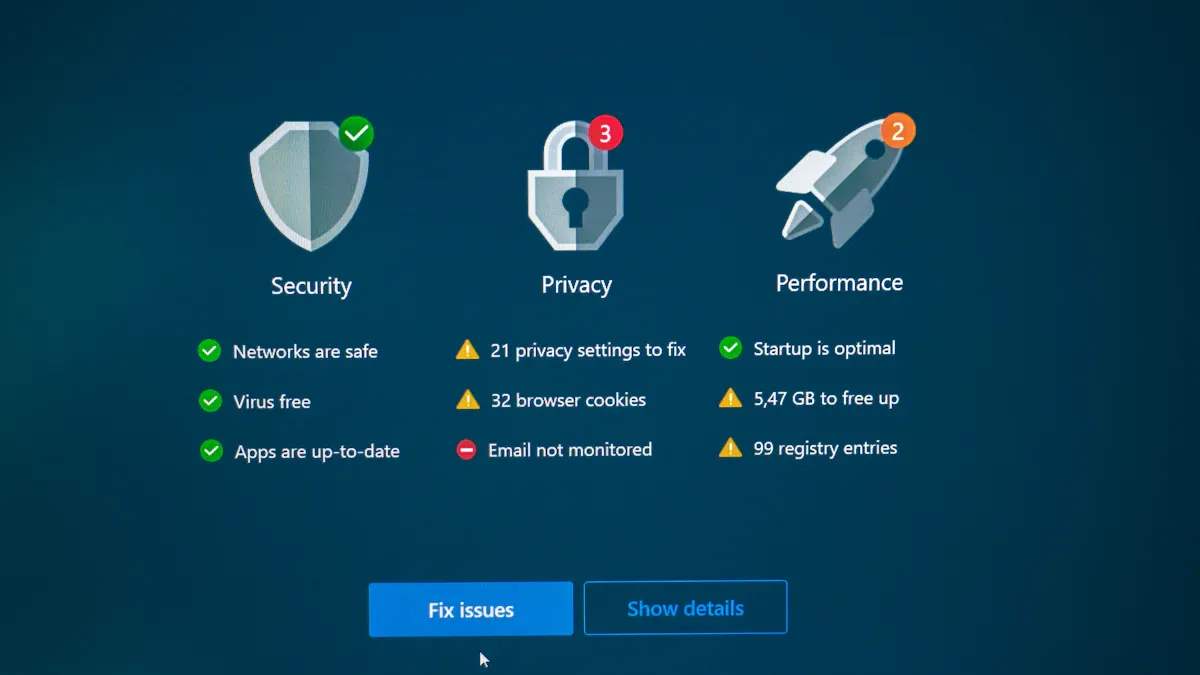
Clearing your app cache can significantly enhance your device’s performance. Cached data often becomes outdated or corrupted, which can slow down your Android device. By removing this temporary data, you can experience several benefits:
Faster app loading times
Reduced crashes and freezes
Smoother overall device operation
Regular maintenance, including cache clearing, helps prevent performance issues. It also stops the accumulation of outdated files that can bog down your system. Here’s a quick look at how clearing cache impacts performance:
Performance Impact | Description |
|---|---|
Slower app launching and switching | Excessive cache can delay app responsiveness. |
Increased battery drain and heat | The processor works harder when memory is scarce, leading to more heat. |
System crashes and freezes | Overloaded cache can lead to instability in system performance. |
How to Clear Cache
Clearing the cache on your Android device is straightforward. Follow these steps to ensure your apps run smoothly:
Open Settings on your Android device.
Navigate to Apps or Apps & notifications (this may vary by manufacturer).
Tap See all apps if needed, then select the app you want to clear the cache for.
Go to Storage & cache (or just Storage).
Tap Clear cache.
You can also clear the cache for your browser. For example, in Chrome:
Launch Chrome on your Android phone.
Tap the three-dot menu (top-right) → Settings → Privacy & security.
Select Clear browsing data.
Choose a timeframe (e.g., “All time”), check Cached images and files, then tap Clear data.
By regularly clearing your app cache, you can maintain optimal Android app performance and enjoy a faster, more efficient device.
Limit Background Processes
Adjust Background Data
Limiting background data is essential for improving your Android device’s performance. Background apps can drain battery and consume bandwidth. To manage this, follow these steps:
Open Settings on your device.
Tap Connections, then select Data usage.
Enable Data saver to prevent background apps from using data.
Check Mobile data usage to see which apps consume the most data.
By adjusting these settings, you can reduce unnecessary data usage and improve battery efficiency. Continuous data usage from apps like social media keeps the processor active, which consumes battery. Limiting background processes helps your device run smoother and saves battery life.
Battery Optimization
Battery optimization features can significantly enhance your Android device’s performance. These features help manage application power by putting rarely used apps in standby mode. This action minimizes unnecessary power consumption. Here are some benefits of enabling battery optimization:
It prevents rogue apps from draining battery quickly.
Sleeping apps reduce power usage by putting unused apps to sleep.
Optimizing background apps leads to better battery life and device efficiency.
By enabling these features, you can enjoy longer battery life and improved performance. Remember, background apps continue to run even when not in use, performing updates and sending notifications. While some background activity is necessary, limiting it can lead to a more efficient device.
Optimize App Updates
Importance of Updates
Keeping your apps updated is crucial for both security and performance. Regular updates protect your device from vulnerabilities that hackers exploit. For instance, in April 2025, Google patched 62 vulnerabilities, including two actively exploited by hackers. This highlights the urgency of timely updates. Here are some key reasons to keep your apps updated:
Security patches block malware and viruses.
Updates improve overall device performance and functionality.
Regular updates ensure smoother operation of your apps.
Think of security updates as a flu shot for your phone. They help prevent issues even when threats are not immediately visible. By prioritizing updates, you enhance your device’s safety and efficiency.
Enable Automatic Updates
Enabling automatic updates ensures that your apps stay current without requiring manual checks. This feature saves you time and helps maintain optimal performance. Follow these steps to enable automatic updates on your Android device:
Open the Google Play Store app.
Tap the Menu option in the top left corner.
Select Settings.
Under Network preferences, tap on Auto-update apps.
Choose Over any network or Over Wi-Fi only to enable automatic updates.
You can also set auto-update options for individual apps. Here’s how:
Open the Google Play Store app.
Tap the Menu option.
Select My apps & games.
Under the Installed tab, choose the app you want to update automatically.
Tap the More option in the top right corner.
Check the Auto-update option.
By enabling automatic updates, you ensure that your apps receive the latest features and security enhancements, contributing to better performance and battery efficiency.
Manage App Permissions
Review Permissions
Managing app permissions is vital for your Android device’s security and performance. You should regularly review the permissions granted to your apps. Excessive permissions can lead to unauthorized access to sensitive data, such as reading messages or recording audio. In fact, 62% of assessed Android apps requested one or more dangerous permissions. Common dangerous permissions include access to external storage, SMS, and location tracking. These can be misused for surveillance and data harvesting.
To review app permissions, follow these steps:
Open your phone’s Settings app.
Scroll down to find Apps & notifications.
Tap on App permissions or Permission manager.
Review each permission type and evaluate if the app needs it.
Optionally, review individual apps by going to Apps & notifications and selecting App info.
Ask yourself if the app really needs the permission. For example, a calculator app likely doesn’t need location access. For unnecessary permissions, select Deny or Don’t allow.
Disable Unnecessary Permissions
Disabling unnecessary permissions can enhance your device’s security. Dangerous permissions, such as location, microphone, and contacts, are often disabled to prevent malicious activities. Be cautious of apps requesting excessive permissions. For instance, a game asking for access to contacts or a calculator app wanting microphone access raises red flags.
To revoke access for apps that misuse permissions, follow these steps:
Go to Settings > Security & Privacy > Privacy > Privacy Dashboard.
Tap on 7-Day View to see app usage.
Revoke access for apps that misuse permissions.
By managing app permissions effectively, you can ensure efficient memory management and better battery optimization on your Android device.
Use Lite Versions for Efficiency
Benefits of Lite Apps
Using lite versions of apps can greatly enhance your Android experience. These apps are designed to be efficient and user-friendly. Here are some key advantages of using lite apps:
Advantage | Description |
|---|---|
Works on slow mobile internet | Lite apps function effectively even on slow connections, making them accessible to more users. |
Faster performance | They run quickly, reducing load times and improving user experience. |
Reduced storage requirements | Lite apps take up significantly less space, which is crucial for users with limited storage. |
Cost-effective for users | By consuming less data, they help users save on data costs, providing better value for money. |
Compatibility with older devices | Lite apps perform well on older or less powerful smartphones, extending their usability. |
Useful in critical situations | They can operate under poor connectivity, making them vital during emergencies or crises. |
Recommended Lite Alternatives
If you want to try lite apps, here are some recommended alternatives to popular applications:
Facebook Lite
YouTube Go
Skype Lite
Instagram Lite
TikTok Lite
Twitter Lite
Pinterest Lite
Parallel Space Lite
These lite versions maintain essential features while improving performance and efficiency. By switching to these alternatives, you can enjoy a smoother experience on your Android device.
Optimize Storage Space
Use Cloud Storage
Using cloud storage is an effective way to manage your files and optimize your Android device’s performance. It allows you to store files online instead of on your device. This frees up valuable memory space, which is crucial for smooth operation. When storage space is insufficient, your device struggles to manage temporary files and cache operations. This can lead to lag and reduced responsiveness in applications. Keeping 10-15% of storage free is vital for your device to perform necessary tasks efficiently.
Here are some benefits of using cloud storage:
Benefit | Description |
|---|---|
Accessibility | Access your files from any device with an internet connection. |
Data Synchronization | Ensures files are updated in real-time across multiple devices. |
Data Security | Employs encryption measures to protect personal information. |
Automatic Backups | Regularly backs up files without manual intervention, preventing data loss. |
Additional Storage Space | Provides extra storage beyond your device’s capacity, allowing for more files to be saved. |
Delete Unnecessary Files
Regularly deleting unnecessary files is essential for maintaining optimal storage on your Android device. You should aim to clear app caches weekly and system caches monthly. Additionally, review large files and media periodically to ensure you only keep what you need. This practice not only helps free up space but also improves your device’s overall performance.
By managing your storage effectively, you can enjoy a faster and more efficient Android experience. Remember, a well-maintained device leads to better performance and a smoother user experience.
Regular app management is essential for maintaining your Android device’s performance. By following the tips outlined in this blog, you can optimize thread usage, reduce app loading times, and manage offline data effectively. These strategies lead to a smoother user experience and improved device efficiency. Implement these practices today and share your experiences or additional tips in the comments!
FAQ
What should I do if my Android device is still slow after following these tips?
If your Android device remains slow, consider performing a factory reset. This action can clear all data and restore your device to its original state.
How often should I clear my app cache?
You should clear your app cache every few weeks. Regular maintenance helps keep your Android device running smoothly and efficiently.
Are lite apps safe to use?
Yes, lite apps are safe. They offer essential features while consuming fewer resources, making them ideal for devices with limited storage or slower internet connections.
