

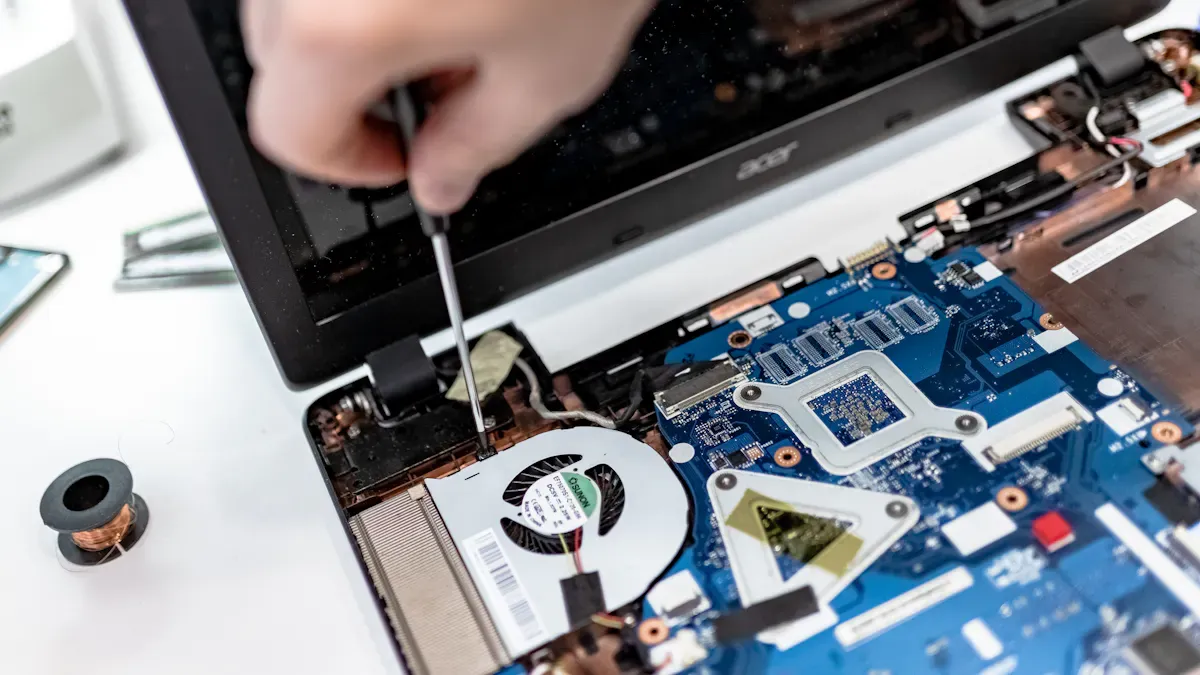
Imagine sitting down to work, only to face laptop performance issues that make your device slow to boot up. Frustrating, right? A fast laptop is crucial for your productivity, whether you’re in a meeting or completing assignments. You might often deal with issues like lagging video calls or applications freezing at the worst possible moments due to these laptop performance issues. In fact, slow laptop performance can lead to lost productivity and wasted time. Research shows that simply having too many open applications or an outdated operating system can contribute to these annoying laptop performance issues. Let’s dive into some effective solutions to help you speed things up!
Key Takeaways
Restart your laptop regularly to clear temporary files and improve performance.
Keep your hard drive clean by deleting unused files and uninstalling unnecessary applications.
Consider upgrading your RAM or switching to an SSD for a significant boost in speed.
Use antivirus software to protect your laptop from malware and enhance security.
Perform regular maintenance to prevent slowdowns and extend your laptop’s lifespan.
Immediate Fixes for Slow Computers
Restarting Your Laptop
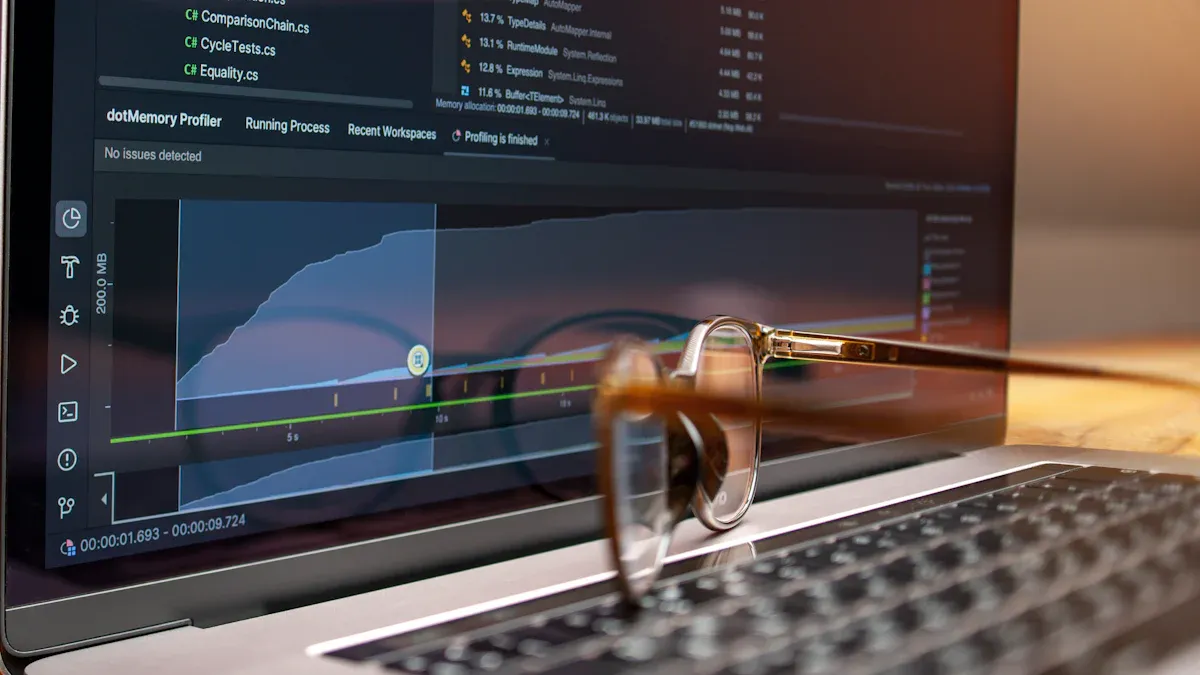
When your laptop starts to feel sluggish, one of the simplest and most effective solutions is to restart it. You might be surprised at how often a quick reboot can resolve issues. Restarting your laptop clears out temporary files and resets processes that may be causing slow performance. In fact, studies show that rebooting can help:
Clear memory leaks.
Reset services that slow down your system.
Close stuck background processes that hinder speed.
So, if you notice your laptop lagging, take a moment to restart it. This small action can breathe new life into your device and improve its overall performance.
Checking for Overheating
Another common culprit behind a slow laptop is overheating. When your laptop gets too hot, it can throttle its performance to protect itself. This can lead to frustrating slowdowns. To check for overheating, consider these tips:
Feel the laptop: If it’s hot to the touch, it might be overheating.
Listen for fans: If the fans are running loudly or constantly, they may be working overtime to cool down your device.
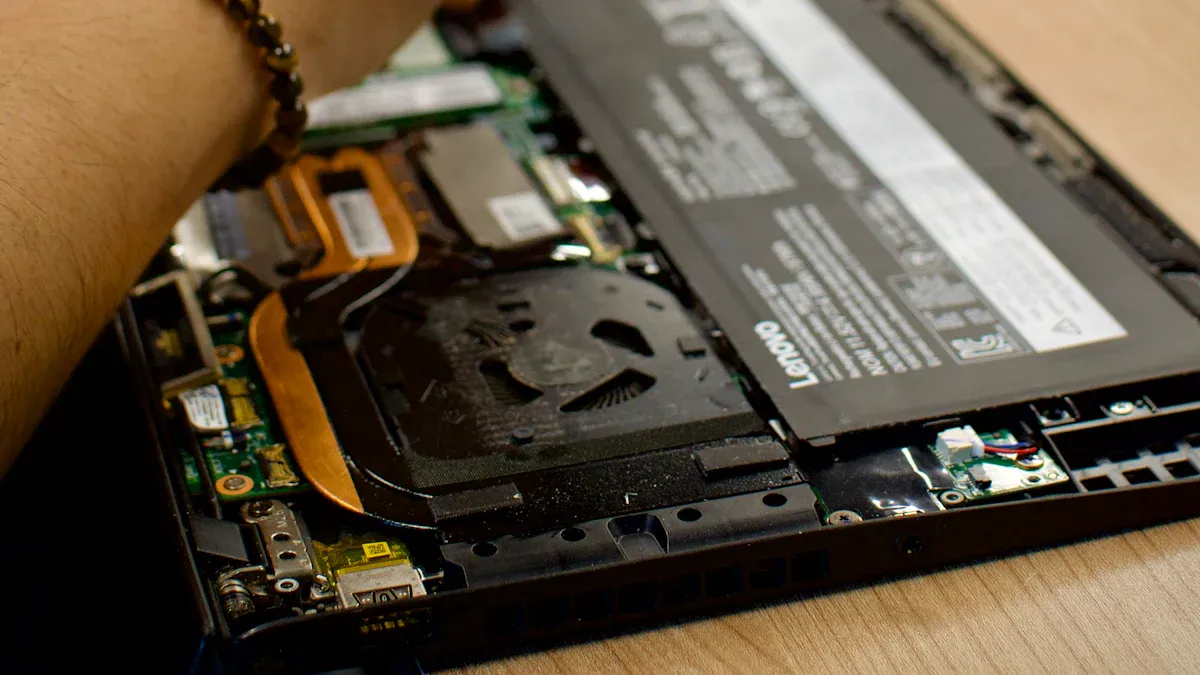
Clean your laptop: Dust and debris can block vents and cause overheating. Regularly cleaning your laptop can help maintain optimal airflow.
If you suspect overheating, try placing your laptop on a hard surface to allow better ventilation. You can also invest in a cooling pad to help regulate temperature. Keeping your laptop cool not only improves speed but also extends its lifespan.
By taking these immediate actions, you can tackle slow computer issues head-on. Remember, a quick restart and ensuring your laptop stays cool can make a significant difference in your device’s performance.
Maintenance Tips to Improve Laptop Performance
Cleaning Up the Hard Drive
Keeping your hard drive clean is essential for maintaining speed and performance. Aim to keep at least 20% of your hard drive free to ensure smooth operation. If you have a mechanical hard drive (HDD), try to maintain 15% to 20% free space. For solid-state drives (SSD), aim for at least 25% free space. This helps your laptop run efficiently and prevents slowdowns.
Here are some effective ways to clean up your hard drive:
Delete Unused Files: Go through your documents, downloads, and desktop folders. Remove files you no longer need.
Clear Temporary Files: Regularly clear temporary files and browser caches. This can free up disk space and improve laptop performance.
Uninstall Unused Applications: If you have programs you rarely use, uninstall them. This frees up valuable resources and storage.
Manage Storage: Declutter your desktop and perform regular disk clean-ups. Keeping your desktop organized can also help you find files faster.
Tip: Regularly back up your data to prevent loss in case of system failure. This ensures you don’t lose important files while cleaning up.
Running Periodic Maintenance Tasks
Regular maintenance tasks are crucial for keeping your laptop running smoothly. Outdated software and drivers can lead to compatibility issues and slow performance. Here’s how to stay on top of your laptop’s maintenance:
Update Software and Drivers: Keeping your operating system and applications updated enhances security and performance. Regular updates can prevent performance issues and ensure your laptop runs efficiently.
Reboot After Updates: Always reboot your laptop after installing updates. This ensures all changes take effect properly.
Use Antivirus Software: Protect your laptop from malware by using reliable antivirus software. Safe browsing habits also help keep your system secure.
Monitor Background Applications: Check for applications running in the background. Closing unnecessary programs can free up resources and increase speed.
By following these maintenance tips, you can significantly improve laptop performance and prevent slowdowns. Regularly cleaning up your hard drive and performing maintenance tasks will keep your device running smoothly for years to come.
Hardware Upgrades for Better Performance
Upgrading RAM
If your laptop struggles with multitasking or runs slow during demanding tasks, it might be time to consider upgrading your RAM. Adding additional RAM can significantly boost your laptop’s performance. Here’s why:
Improved Multitasking: More RAM allows you to run multiple applications smoothly without lag.
Enhanced Graphics Performance: Upgrading to dual-channel RAM can increase your graphics score by about 30%. This means better performance in gaming and graphic-intensive tasks.
Reduced Frame Drops: With more RAM, you’ll notice fewer frame drops on graphic-heavy websites, making your browsing experience much smoother.
If you often find your laptop using a lot of memory, adding additional RAM could be the solution you need.
Switching to an SSD
Switching from a traditional hard drive (HDD) to a solid-state drive (SSD) is one of the most effective upgrades you can make. Here’s what you can expect:
Faster Boot Times: An SSD can boot your laptop in seconds, compared to minutes with an HDD.
Quicker Application Launches: Applications open almost instantly, allowing you to get to work faster.
Improved Overall System Responsiveness: Your laptop will feel snappier and more responsive to your commands.
Faster File Transfers: Moving files around becomes a breeze, saving you time and frustration.
Upgrading to an SSD not only enhances performance but also improves your overall user experience.
Investing in these hardware upgrades can breathe new life into your laptop, making it faster and more efficient. Whether you choose to add additional RAM or switch to an SSD, you’ll notice a significant difference in how your laptop performs.
Software Management for Laptop Performance Issues
Removing Bloatware
Bloatware can be a significant drain on your laptop’s performance. These unnecessary applications often come pre-installed on your device, consuming valuable resources. Removing them can lead to noticeable improvements in speed and responsiveness. Here’s how bloatware impacts your laptop:
Impact Type | Description |
|---|---|
Reduced Performance | Bloatware consumes valuable system resources such as RAM, storage space, and processing power. |
Battery Drain | Many bloatware apps run in the background, leading to increased battery consumption. |
Wasted Storage Space | Bloatware takes up valuable storage space, leaving less room for personal files and apps. |
Common types of bloatware include:
Manufacturer Apps: Pre-installed applications by the device manufacturer.
Carrier Apps: Applications installed by the service provider.
Trialware: Trial versions of paid software that expire after a period.
Adware: Software designed to display advertisements and track online activities.
Third-Party Apps: Applications from third-party developers that are often promotional.
By removing these unwanted programs, you can free up resources and improve your laptop’s overall performance.
Managing Startup Programs
Another way to enhance your laptop’s speed is by managing startup programs. When you turn on your laptop, many applications automatically launch, which can slow down boot times and overall performance. To optimize your startup process, consider these tips:
Enable essential programs such as security software and system utilities.
Keep drivers necessary for hardware functionality enabled.
Disable unnecessary programs like browsers unless instant access is preferred.
You can easily manage startup programs on both Windows and Mac laptops. For Windows, access the Startup Folder by pressing Win+R and entering shell:startup. On macOS, go to System Preferences > Users & Groups > Login Items.
By taking control of your startup programs, you can significantly reduce boot times and improve your laptop’s responsiveness.
Final Measures for Persistent Issues
Performing a Factory Reset
If you’ve tried everything and your laptop still struggles with performance, a factory reset might be your best bet. This process restores your laptop to its original state, which can resolve many lingering issues. Here’s what you can expect from a factory reset:
Benefit | Description |
|---|---|
Performance Boost | A reset removes software bloat and unused apps, restoring speed and responsiveness. |
Malware and Virus Removal | A full reset eliminates deeply embedded malware, providing a clean environment. |
Clear Out Clutter | Temporary files and registry errors are cleared, optimizing system performance. |
Fix Persistent System Errors | Resets can correct corrupted system files and misconfigurations, resolving recurring issues. |
Easy Troubleshooting | A reset is a quick solution to eliminate complex issues without extensive diagnostics. |
Before you proceed, remember to back up your important files. Data loss is a significant risk if you don’t have a backup. Once you’re ready, follow the instructions specific to your operating system to perform the reset.
Seeking Professional Help
Sometimes, despite your best efforts, laptop performance issues persist. In such cases, seeking professional help can save you time and frustration. Here are some signs that it’s time to consult an expert:
Issue | When to Seek Help |
|---|---|
Slow Performance | Consult a professional if your laptop remains slow after troubleshooting steps. |
Overheating | If overheating persists, there may be an internal component issue; contact a professional. |
Connectivity Problems | If unable to connect to Wi-Fi, there might be a hardware issue with the Wi-Fi card. |
Battery Issues | If battery life is very short, seek help to replace the battery as it may have reached its lifespan. |
Laptop Won’t Turn On | If the laptop still won’t turn on, it could be a critical component issue; contact a professional. |
Professional repair services can vary in cost depending on the brand and the issue. For example, Apple repairs can range from $300 to $500, while Dell repairs might cost between $150 and $300.
Taking these final measures can help you tackle persistent laptop performance issues effectively. Whether you choose to reset your device or seek professional assistance, you’ll be on your way to a smoother computing experience.
In summary, keeping your laptop running smoothly involves a mix of immediate fixes and regular maintenance. Here are some key takeaways to remember:
Regularly reboot your laptop to clear temporary files.
Clean your hard drive and remove unnecessary programs to free up space.
Upgrade your RAM or switch to an SSD for better performance.
Use antivirus software to protect against malware.
By following these tips, you can enhance your laptop’s speed and prevent future performance issues. Remember, a little maintenance goes a long way in extending the life of your device!
