

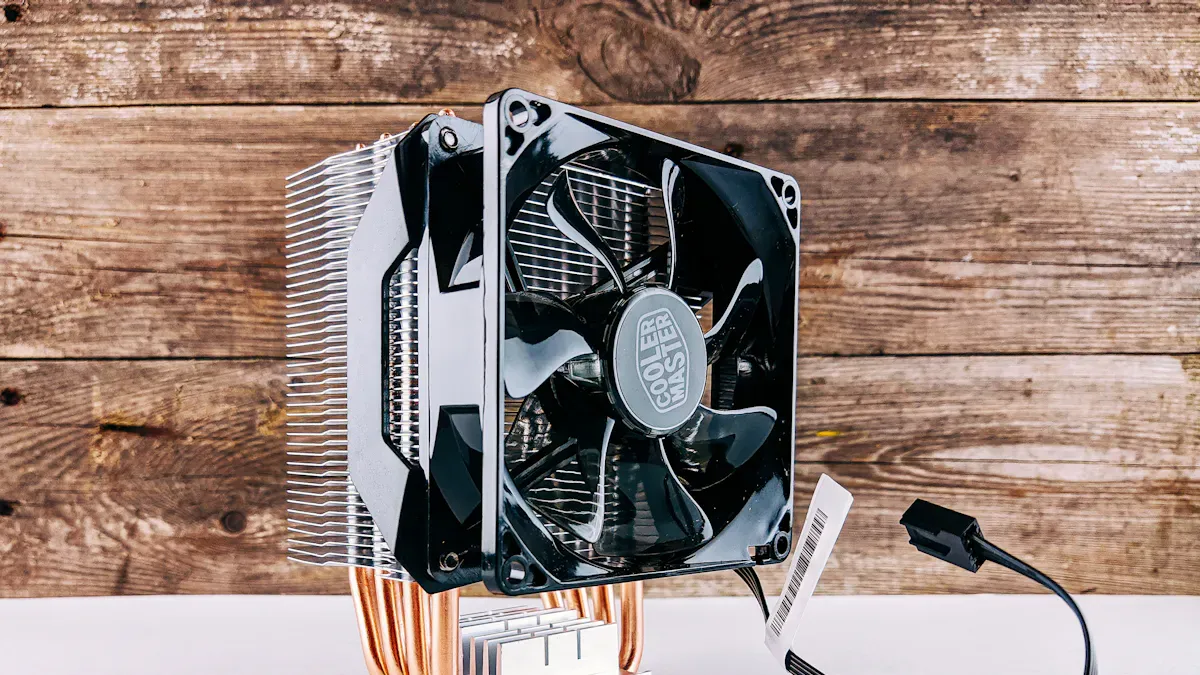
Laptop overheating can be a frustrating issue that affects your device’s performance and longevity. When your laptop runs too hot, it can lead to problems like slowdowns, crashes, and even permanent damage. Repeated exposure to high temperatures wears down components and causes thermal throttling, which forces your CPU and GPU to slow down. This means your laptop might struggle to handle even simple tasks. It’s crucial to address overheating issues to keep your laptop running smoothly and efficiently.
Key Takeaways
Regularly clean your laptop to remove dust and debris, which can block airflow and cause overheating.
Always use your laptop on hard, flat surfaces to ensure proper ventilation and prevent heat buildup.
Adjust power settings and close unnecessary applications to optimize performance and reduce heat generation.
Consider investing in a cooling pad to enhance airflow and lower your laptop’s temperature during intensive tasks.
Upgrade hardware components, like adding RAM or switching to an SSD, to improve heat management and overall performance.
Common Causes of Laptop Overheating
Dust and Debris
One of the most common causes of laptop overheating is dust and debris accumulation. Over time, dust can build up inside your laptop, especially around the fans and vents. This buildup can block airflow, making it difficult for your laptop to cool itself effectively. When dust clogs the fans, they can’t spin as freely, leading to higher temperatures.
Here are some signs that dust might be causing your overheating issues:
Your laptop feels unusually warm to the touch.
You notice loud fan noises as they struggle to cool the system.
The performance drops significantly during heavy tasks.
In fact, many users have reported that dust accumulation led to overheating in their laptops. For example, a high-end ASUS ROG gaming laptop experienced higher than normal operating temperatures due to dust blocking the GPU fan. This situation is not uncommon; dust is often identified as a primary cause of overheating in computers.
To keep your laptop running smoothly, consider cleaning it regularly. Here’s a quick guide on how to do it:
Power off your laptop and remove the bottom panel using a screwdriver.
Use short bursts of canned air to blow dust out of the laptop, especially from the vents and fans.
Hold the fan blade in place while cleaning to prevent it from spinning too fast.
Replace the bottom panel and screws after cleaning.
Ventilation Issues
Another major factor contributing to laptop overheating is inadequate ventilation. If your laptop is placed on soft surfaces like beds or couches, it can block the air intake and exhaust vents. This restriction prevents effective airflow, which is crucial for cooling.
When you run high-performance tasks like gaming or video editing, your laptop generates a lot of heat. If the airflow is restricted, the heat can’t escape, leading to overheating. Here are some signs of poor ventilation:
Increased temperature: Your laptop feels noticeably warmer, and the fans spin faster than usual.
Performance drops: You may experience significant slowdowns during resource-intensive tasks.
Loud rattling noise: A defective fan may produce unusual sounds before failing completely.
To improve ventilation, always use your laptop on hard, flat surfaces. Consider investing in a cooling pad or stand to elevate your laptop and enhance airflow.
By addressing these common causes of laptop overheating, you can maintain optimal performance and extend the life of your device.
What to Do When My Laptop Overheats
When you notice your laptop overheating, it’s essential to act quickly. Here are some immediate actions you can take to prevent further damage:
Immediate Actions
Give your laptop a break: Save your work and shut it down completely. Let it cool for at least 15 to 20 minutes on a hard, flat surface. This allows for proper air circulation.
Clean the vents and fans: Power down your device, unplug it, and if possible, remove the battery. Use compressed air to clean dust from the vents and fans. This helps restore airflow and can significantly reduce overheating.
Experts recommend these steps to address overheating effectively. By taking these actions, you can help prevent unexpected shutdowns and sluggish performance.
Cooling Techniques
Once your laptop has cooled down, consider implementing some cooling techniques to maintain optimal performance:
Laptop Cooling Pads: These devices provide additional airflow with built-in fans, helping to reduce temperature by 5-15°C.
Vacuum Coolers: These attach to the air vent and efficiently suck hot air out of the laptop. They’re especially useful during intensive tasks.
Adjustable Laptop Stands: Elevating your laptop improves natural airflow, aiding in heat dissipation.
Eco-Friendly Cooling Practices: Always use your laptop in well-ventilated areas. Regularly clean the vents to enhance cooling.
By using these cooling techniques, you can effectively manage laptop overheating and ensure your device runs smoothly. Remember, addressing overheating issues promptly is crucial for maintaining your laptop’s performance and longevity.
Preventing Overheating
Regular Maintenance
To keep your laptop running smoothly and prevent overheating, regular maintenance is key. Here are some proactive strategies to prevent overheating:
Clean the vents and fans: Dust can accumulate quickly, so use compressed air to clean them every few months. This simple step can significantly improve airflow.
Schedule regular cleaning and maintenance: Depending on how often you use your laptop, consider the following maintenance frequency:
User Type | Maintenance Frequency |
|---|---|
Heavy users | Every 2 to 3 months |
Moderate users | Every 3 to 6 months |
Light users | Every 6 months |
Keep software and drivers up to date: Regular updates can enhance performance and efficiency, reducing the risk of overheating.
Software and Hardware Solutions
Optimizing your laptop’s software and hardware can also help manage heat effectively. Here are some solutions to consider:
Optimize software and power settings: Lowering your screen brightness and closing unnecessary applications can reduce heat output. This helps your laptop run cooler during demanding tasks.
Use monitoring tools: Software like HWMonitor or Core Temp can help you keep an eye on your laptop’s temperature. Monitoring allows you to catch overheating issues before they escalate.
For hardware upgrades, consider these options:
Upgrade Type | Description |
|---|---|
Cooling Pad | A cooling pad with built-in fans can significantly improve airflow and reduce temperatures. |
Thermal Paste | Replacing old thermal paste on the CPU and GPU can enhance thermal conductivity and cooling. |
More RAM | Adding more RAM can reduce the burden on the hard drive, leading to lower heat production. |
SSD Upgrade | Upgrading to an SSD can improve heat transfer efficiency. |
By implementing these maintenance practices and solutions, you can effectively combat laptop overheating and maintain optimal performance.
Cooling Tips for Optimal Performance
Monitoring and Management
Keeping an eye on your laptop’s temperature is crucial for preventing overheating. You can use various tools to monitor your device’s thermal performance during intensive tasks. Here’s a quick overview of some reliable methods:
Method | Platform | Description |
|---|---|---|
Activity Monitor | macOS | Provides insights into CPU load, indirectly indicating thermal stress. |
lm-sensors | Linux | Command-line tool offering real-time thermal data, including temperatures and fan speeds. |
HWMonitor | Windows | Lightweight tool that displays detailed system temperatures, fan speeds, and voltage readings. |
SpeedFan | Windows | Monitoring tool that also allows control of fan speeds based on temperature readings. |
By regularly checking these metrics, you can manage applications better and avoid overloading your laptop. If you notice high temperatures, consider closing unnecessary programs or adjusting your power settings to reduce heat generation.
Cooling Accessories
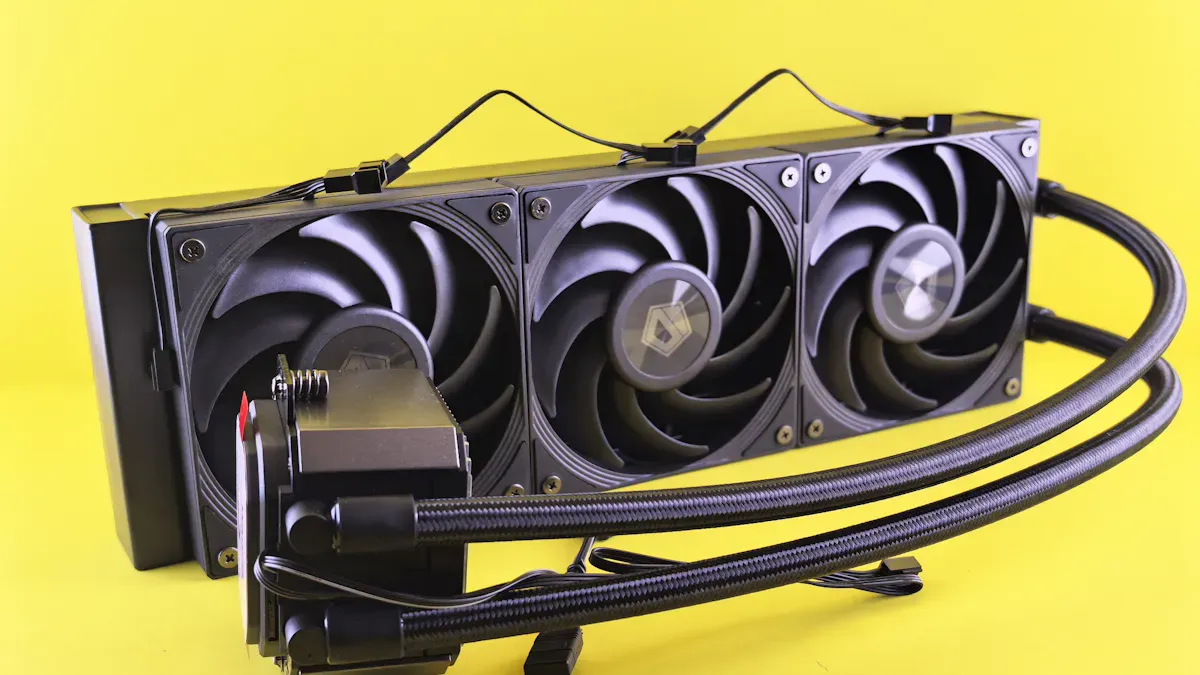
Investing in cooling accessories can significantly enhance your laptop’s performance. Here are some popular options to consider:
Cooling Pad with Three Fans: Features three powerful fans, dual USB ports, and adjustable height settings.
KLIM Wind Cooling Pad: Comes with four fans, ultra-quiet operation, and fits laptops up to 17 inches.
Targus Lap Chill Mat: Lightweight with two fans, designed for laptops up to 17 inches, and provides a comfortable angle.
Kootek Cooling Pad: Ergonomic with six height adjustments, five fans, and customizable cooling options.
TECKNET Cooling Pad: Designed for 12 to 16-inch laptops, dual fan design with speed control.
ENCHANCE Cooling Pad: Five fans, three height adjustments, and front bumpers to prevent slips.
KeiBn Cooling Pad: Six built-in fans, ideal for gamers, with a colorful RGB border and a built-in phone holder.
Using a cooling pad or elevating your laptop can lower its temperature by several degrees, improving performance and stability. These external cooling solutions help maintain optimal airflow, ensuring your laptop stays cool even during demanding tasks.
In summary, addressing laptop overheating is crucial for maintaining your device’s performance and longevity. Here are some key takeaways to keep in mind:
Regularly clean your laptop to maintain fan efficiency.
Ensure proper airflow by using your laptop on hard surfaces.
Adjust your settings to optimize power usage and reduce heat.
Consider using a laptop cooling pad for extra support.
Upgrading hardware, like adding RAM or switching to an SSD, can improve heat management.
Ignoring overheating can lead to serious issues, such as hardware damage, performance degradation, and potential data loss. So, take proactive steps to keep your laptop running efficiently. Your device will thank you!
