


Imagine you’re halfway through your favorite playlist when suddenly, your phone warns you that you’re out of mobile data. Frustrating, right? In our hyper-connected world, saving mobile data has become essential. With average mobile data consumption skyrocketing from 4.9 GB per user in 2018 to 21.6 GB in 2024, you need to be smart about how you use your data. Luckily, there are plenty of mobile data saving tricks that can help you stretch your data plan further and even allow you to buy affordable data plans more effectively.
Key Takeaways
Limit background data usage by adjusting app settings. This helps save a significant amount of your monthly data allowance.
Enable Data Saver Mode on your device to restrict background data for apps. This prevents unnecessary data charges.
Use lite apps like Facebook Lite and Google Go to enjoy similar experiences with less data consumption.
Adjust video streaming quality to lower resolutions. This simple change can save you over 70% of your data while watching videos.
Utilize Wi-Fi whenever possible for downloads and updates. This keeps your mobile data usage low and saves you money.
Device Settings for Data Saving
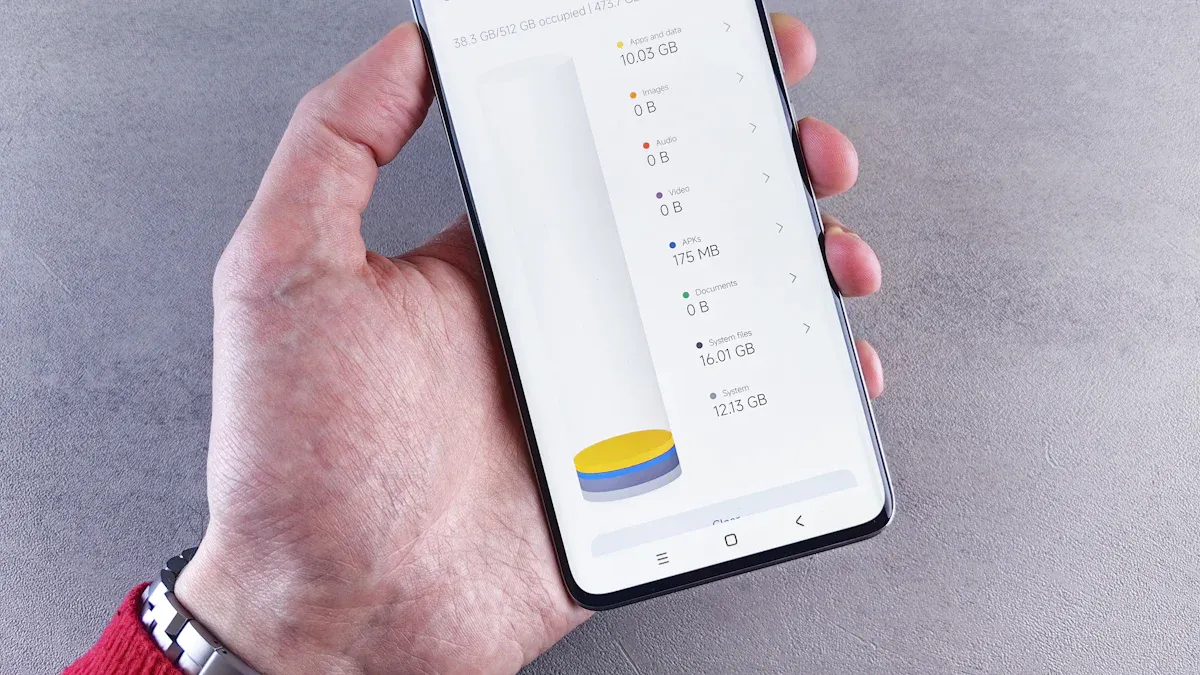
When it comes to saving mobile data, adjusting your device settings can make a big difference. Here are two key settings you should consider:
Limit Background Data
Many apps continue to use data even when you’re not actively using them. This is known as background data usage. To control background data, you can limit which apps can access data in the background. Here’s how to do it:
For Android:
Open the Settings app.
Tap on Apps or Application Manager.
Select the app you want to restrict.
Tap on Mobile Data and toggle off Background Data.
For iOS:
Open the Settings app.
Tap on Cellular.
Scroll down to see a list of apps and toggle off the ones you don’t want to use data in the background.
By limiting background app refresh, you can significantly reduce data usage. In fact, studies show that controlling background data can help you save a considerable amount of your monthly data allowance.
Tip: Consider using offline maps and preloading content when you have Wi-Fi. This way, you can enjoy your favorite apps without worrying about data consumption.
Enable Data Saver Mode
Another effective way to save data is by enabling Data Saver Mode. This feature restricts background data usage for apps, which is crucial for conserving mobile data. Here’s how to enable it on both Android and iOS devices:
For Android:
Open the Settings app.
Tap on Connections or Network & Internet.
Select Data Usage.
Tap on Data Saver and toggle it on.
For iOS:
Open the Settings app.
Tap on Cellular.
Scroll down and toggle on Low Data Mode.
Enabling Data Saver Mode can help you avoid unnecessary data charges, especially if you have a limited data plan. It prevents apps from refreshing when not in use, effectively reducing your overall data consumption.
Strategy | Android | iOS |
|---|---|---|
Disable automatic updates | Yes (Google Play settings) | Yes (App Store settings) |
Limit video autoplay | Yes (in-app settings) | Yes (in-app settings) |
Configure WhatsApp to save data | Yes (Data usage settings) | N/A |
Disable automatic synchronization | Yes (email/cloud settings) | Yes (email/cloud settings) |
Use browsers in Data Saver mode | Yes (Google Chrome Lite) | N/A |
Activate low data consumption mode | Yes (in settings) | Yes (in settings) |
Close background applications | Yes (in settings) | Yes (in settings) |
By following these steps, you can take control of your mobile data and make smart ways to reduce data usage.
Mobile Data Saving Tricks with Apps
In today’s app-driven world, you can find plenty of ways to save mobile data. One of the simplest methods is to use lite apps. These versions of popular applications are designed to consume less data and perform better on devices with limited resources.
Use Lite Apps
Lite apps are a game-changer for anyone looking to reduce data usage. They load up to 30% faster than their standard counterparts, making your experience smoother. Plus, they take up less storage space and memory on your device. This is especially helpful if you have an older phone or limited storage.
Here are some benefits of using lite apps:
They work better in low-data environments, making them ideal for users with limited connectivity.
They often have fewer features, which means they use less data overall.
You can enjoy a similar experience without the heavy data load.
Switching to lite versions of your favorite apps can significantly help you manage your data plan.
Recommended Data-Saving Apps
In addition to using lite apps, consider downloading specific data-saving apps that can help you manage your mobile data more effectively. These apps often come with features that allow you to control how much data you use. Here are some popular options:
Google Go: This app helps you search the web while using less data. It compresses web pages before loading them, which can save you a lot of data.
Opera Mini: This browser compresses web pages and images, allowing you to browse the internet without worrying about data consumption.
Facebook Lite: This version of Facebook is designed to use less data while still providing access to your news feed and messages.
These apps function by turning off push notifications for emails, adding web pages to your reading list for offline access, and disabling autoplay for videos. You can also download maps for offline use, which helps avoid data usage while navigating.
By incorporating these strategies into your daily routine, you can effectively reduce data usage and enjoy your favorite apps without the constant worry of running out of data.
Adjust Video Streaming Quality
When you stream videos, the quality settings can greatly impact your data usage. Adjusting video streaming quality is one of the easiest ways to save data while still enjoying your favorite shows and movies.
Streaming Settings
Most streaming platforms allow you to customize your video quality. By lowering the resolution, you can save a significant amount of data. Here are some tips for popular platforms:
YouTube:
Enable ‘Data Saver Mode’ in the settings to limit streaming quality on mobile data.
Reduce video quality to 480p or 360p to save over 70% of your data.
Netflix:
Log in to your Netflix account.
Select the profile you want to adjust.
Click the profile icon and select Account.
Go to ‘Profile & Parental Controls’ and select the profile.
Click ‘Change’ next to Playback settings and set it to Medium (0.7 GB/hour) or Low (0.3 GB/hour).
Save changes.
By making these adjustments, you can enjoy your favorite content without worrying about running out of data.
Preloading Content
Another smart way to save data is by preloading content when you have access to Wi-Fi. Picture this: you’re settled in for the night at a gorgeous, remote campsite, ready to finally watch the next episode of that show everyone’s talking about. Instead of burning through your precious mobile data to stream it, you just open your tablet’s library and press play. Why? Because you downloaded the entire season last Tuesday when you were parked at a coffee shop with free Wi-Fi.
Preloading videos not only saves data but also ensures you have access to your favorite content anytime, anywhere. So, whenever you find a good Wi-Fi connection, take a moment to download those episodes or movies you’ve been wanting to watch.
By adjusting your video streaming quality and preloading content, you can significantly reduce your mobile data usage while still enjoying all the entertainment you love.
Wi-Fi and Offline Options
Use Wi-Fi Whenever Possible
You probably know that Wi-Fi beats mobile data for many reasons. It offers a reliable connection, especially in cities or small areas where power is steady. Plus, high-speed Wi-Fi can deliver bandwidth over 25 megabits per second, which makes it perfect for streaming, downloading, or gaming without worrying about data limits.
Using Wi-Fi instead of your mobile data or hotspot can save you a lot of data every month. For example, downloading movies or TV shows while connected to Wi-Fi means you won’t burn through your cellular data. Also, turning off automatic downloads for system updates and apps until you’re on Wi-Fi helps keep your data usage low. Many apps let you limit background refresh to Wi-Fi only, so they don’t sneakily use your mobile data or hotspot usage when you’re not looking.
Here’s a quick list of smart Wi-Fi habits to save data:
Download large files, movies, or music only on Wi-Fi.
Set your phone to update apps and system software only when connected to Wi-Fi.
Restrict background app refresh to Wi-Fi to avoid hidden data use.
Use your phone as a hotspot sparingly, since hotspot usage can drain your mobile data fast.
Tip: When you use your phone as a hotspot, keep an eye on your hotspot usage. Sharing your connection with other devices can quickly eat up your data plan.
Offline Navigation with Maps
Navigation apps often use a lot of data when you’re on the move. But you can avoid this by downloading maps for offline use. Before you leave home or work, connect to a Wi-Fi hotspot and preload the maps you need. This way, your phone won’t use mobile data or hotspot usage to load maps while you travel.
Offline maps work great when you’re in areas with poor signal or want to save data. You can still get directions, search for places, and explore without worrying about your data running out. Many popular map apps, like Google Maps, let you select specific areas to download and update them whenever you connect to Wi-Fi.
Using offline maps also means you don’t have to rely on your hotspot usage if you’re sharing your connection with others. It’s a simple trick that saves data and gives you peace of mind on the road.
By choosing Wi-Fi whenever possible and using offline features like maps, you take control of your data. You’ll enjoy your phone’s full potential without the stress of running out of mobile data or worrying about hotspot usage.
Monitoring Data Usage

Keeping an eye on your mobile data usage is crucial for avoiding unexpected overage charges. Fortunately, you can use various tools and features to help you track data usage effectively.
Set Data Alerts
Setting data alerts is one of the best ways to manage your mobile data. These alerts notify you when you reach certain thresholds of your data limit, like 75%, 90%, or even 100%. This proactive approach allows you to adjust your usage before incurring extra charges.
To set up data alerts on your device, follow these steps:
For Android:
Open Settings and select Data Usage.
View the data usage graph and activate mobile data.
Set your data limit by dragging the black line on the graph.
Optionally, activate Set Mobile Data Limit to turn off mobile data when the limit is reached.
For iOS:
Open Settings and tap on Cellular.
Navigate to Cellular Data Usage to view and reset your data usage.
Manage app data usage to prevent exceeding your limit.
By using these alerts, you can stay informed about your mobile data usage and avoid surprises at the end of the month.
Built-in Monitoring Tools
Both Android and iOS devices come with built-in tools to help you monitor your mobile data usage. Here’s a quick overview of what you can find:
Platform | Tool/Feature | Description |
|---|---|---|
Android | Built-in Settings | Go to Settings > Connections > Data usage to set mobile data limits and alerts. |
iOS | Built-in Settings | Go to Settings > Cellular to view data usage and enable Low Data Mode to reduce consumption. |
Android | My Data Manager | A third-party app that provides detailed statistics and helps optimize data usage. |
Android | 3G Watchdog | Another third-party app that tracks data usage and alerts users about their consumption. |
Using these tools, you can easily track data usage and make informed decisions about your mobile habits.
Tip: Regularly check your data usage to identify which apps consume the most data. This way, you can adjust your usage accordingly.
By monitoring your mobile data usage, you can take control of your plan and avoid running out of data unexpectedly.
Saving mobile data doesn’t have to be a hassle. By using the tricks we’ve discussed, you can stretch your data plan further. Here’s a quick recap of the strategies:
Limit background data and enable data saver mode on your device.
Use lite apps like Facebook Lite to save data while staying connected.
Adjust video streaming quality and preload content when on Wi-Fi.
Take advantage of Wi-Fi whenever possible and download offline maps.
Implementing these tips can lead to significant savings. For example, enabling low power mode reduces background processes, while disconnecting unused devices prevents unnecessary data usage.
